



After testing the leading legal document management systems, I found the 12 best platforms for daily case work in 2026.
Top 12 legal document management systems: At a glance
Legal document management systems range from simple file storage to all-in-one portals. Firms use them in different ways, so it helps to look at pricing, core features, and how each one fits common workflows. Here’s a quick at-a-glance view:
| Tool | Best for | Starting price | Key strength |
|---|---|---|---|
| Assembly | Client-facing document sharing | $29/month | Keeps documents in one place and share selectively with clients in a portal. |
| NetDocuments | Structured document control | Custom pricing | Supports organized versioning and detailed permission settings |
| iManage Work | High-volume document workflows | Custom pricing | Strong search tools with organized document governance |
| Clio | Document storage inside a practice platform | $49/user/month | Links documents to the cases with built-in sharing options |
| LexWorkplace | Email and document organization | $395/month, billed monthly | Creates case-based folders with Microsoft 365 support |
| SmartVault | Secure document sharing and organized file storage | $55/user/month, minimum 3 users | Supports structured folders with controlled access for internal teams and clients |
| CosmoLex | Practices that want documents tied to billing activity | $109/user/month | Connects file storage with time and expense records |
| MyCase | Document sharing with clients | $39/user/month | Offers simple file access through a client portal |
| PracticePanther | Template-based document creation | $49/user/month | Automates document generation within case workflows |
| CaseFox | Budget-friendly document handling | $39/user/month | Supports straightforward uploading, reviewing, and organizing |
| Rocket Matter | Teams sharing documents during active cases | $49/user/month | Helps coordinate files with custom templates and structured folders |
| TimeSolv | Light document storage tied to time tracking | $38/user/month | Connects stored documents with project and billing activity |
1. Assembly: Best for client-facing document sharing

- What it does: Assembly helps you share external documents with clients, including case details, tasks, and client communication, in one workspace. You can upload files, request contract signatures, track updates, and keep everything tied to the right client or case with their visibility.
- Who it’s for: Legal teams that want to share client-facing documents in a branded setting.
We designed Assembly to help you manage client-facing documents and communications in one place. You can set up a branded client portal and customize client onboarding flows before the first consultation, which helps reduce prep time and keeps every detail organized from the start.
You can also add internal notes, use custom fields for case details, and keep private chat threads for your team in the same secure workspace.
When the time is right, you can share the portal so clients can review documents, upload files, and track progress. Contracts, payments, messages, and case documents all connect to the same record. Assembly supports SOC 2, HIPAA, and GDPR requirements, and uses encrypted storage with role-based access controls so sensitive information stays protected across your practice.
Our AI Assembly Assistant supports your work by gathering recent notes, messages, and documents before meetings. It prepares summaries and drafts updates so your team spends less time sorting through case files.
You can also connect Assembly with practice management software like MyCase and Clio, or specialized tools like DecisionVault to integrate with core tools your firm already uses.
Key features
- Case file management: Upload, organize, and share documents for each case.
- Role-based access: Control who can view, upload, or manage documents.
- Contracts and payments: Send agreements, request signatures, and collect payments in one place.
- Internal notes and chat: Keep private case discussions organized for your team.
- Assembly Assistant: Summarizes activity and surfaces key documents before meetings.
Pros
- Connects documents with case details, tasks, and communication
- Supports both intake and active legal work in one organized system
- Integrates with Airtable, ClickUp, Calendly, Zapier, and Make
Cons
- Has more features than simple document storage tools, so setup may take longer if your firm only needs basic uploads
- Better fit for practices with recurring client work than one-time cases
Pricing
Assembly has a free plan, and paid plans start at $29 per month billed annually.
Bottom line
Assembly keeps your legal documents connected to the work that follows, which helps you stay organized and reduces time spent searching for context. If you only need simple file storage without linked tasks or communication, SmartVault may fit better.
2. NetDocuments: Best for structured document control
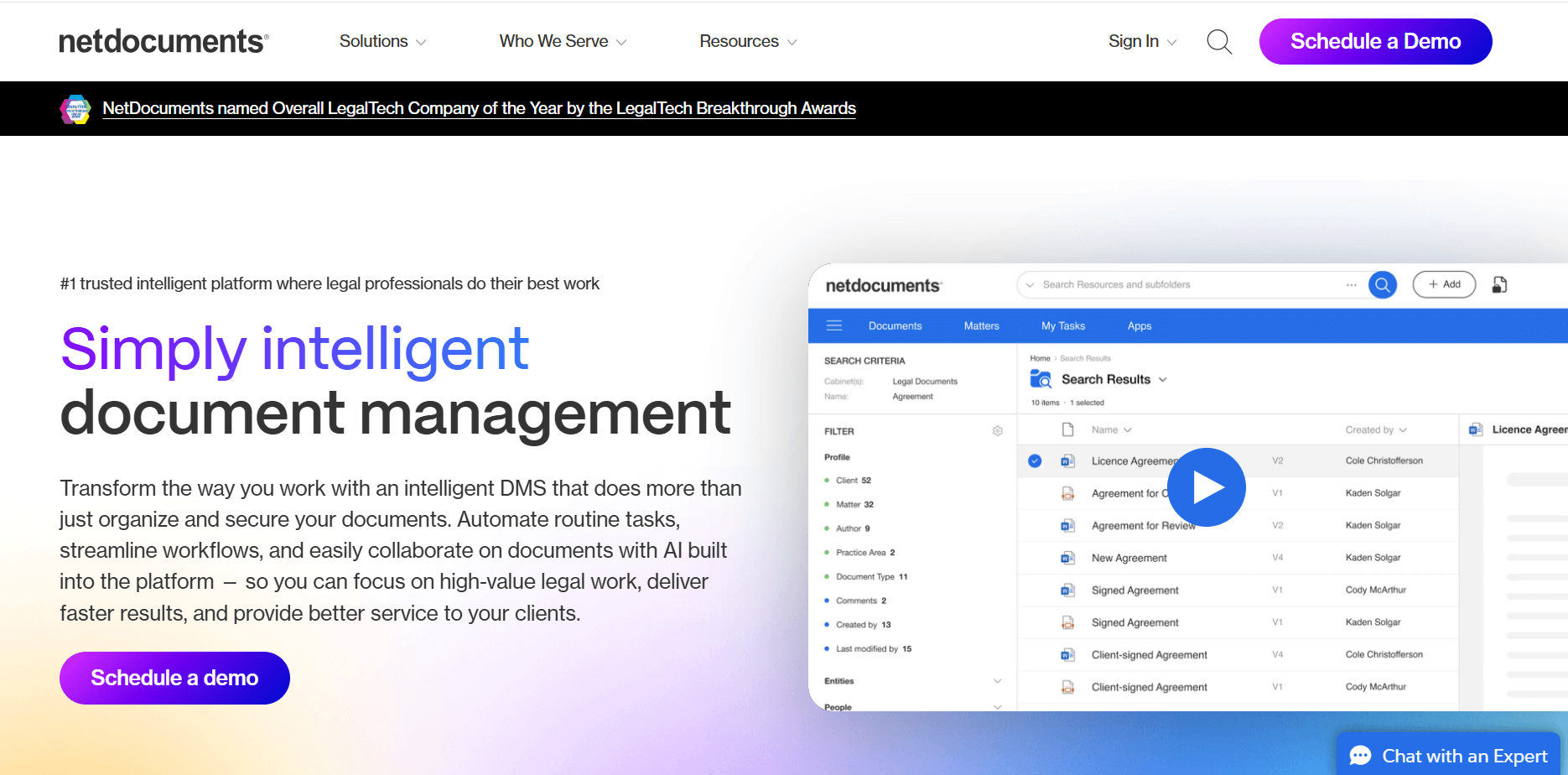
- What it does: NetDocuments is a legal document management system that centralizes case files, email, and document versions in one workspace. It supports tagging, searching, and permission rules so documents stay organized by case.
- Who it’s for: Legal teams that manage large volumes of documents and need strict organization.
The first thing I noticed when testing NetDocuments was how much structure it brings to legal document management. I checked how it handled multiple drafts, permission updates, and email capture, and each file stayed linked to the right case.
Version history was clear during comparisons, which helped when tracking changes across long cases. Search worked well once I applied consistent tags and naming to documents. NetDocuments uses encrypted storage and access controls designed for legal teams that need a predictable security structure.
Setup takes time, and the interface can be rigid if your team updates workflows often. The structure supports firms that need predictable control, but it may be more than smaller practices require.
Key features
- Version control: Track changes across documents with a clear history.
- Permission rules: Manage access at the user and case level.
- Document search: Filter files by tags, names, and metadata.
Pros
- Strong structure for large document sets
- Reliable access control
- Predictable version history
Cons
- Longer setup than lightweight tools
- Less flexible for teams with changing workflows
Pricing
NetDocuments uses custom pricing. Request a demo to learn more.
Bottom line
NetDocuments gives you a predictable structure for managing legal documents across complex cases. Teams that want a lighter legal document management system may find MyCase or CaseFox easier to use.
3. iManage Work: Best for high-volume document workflows
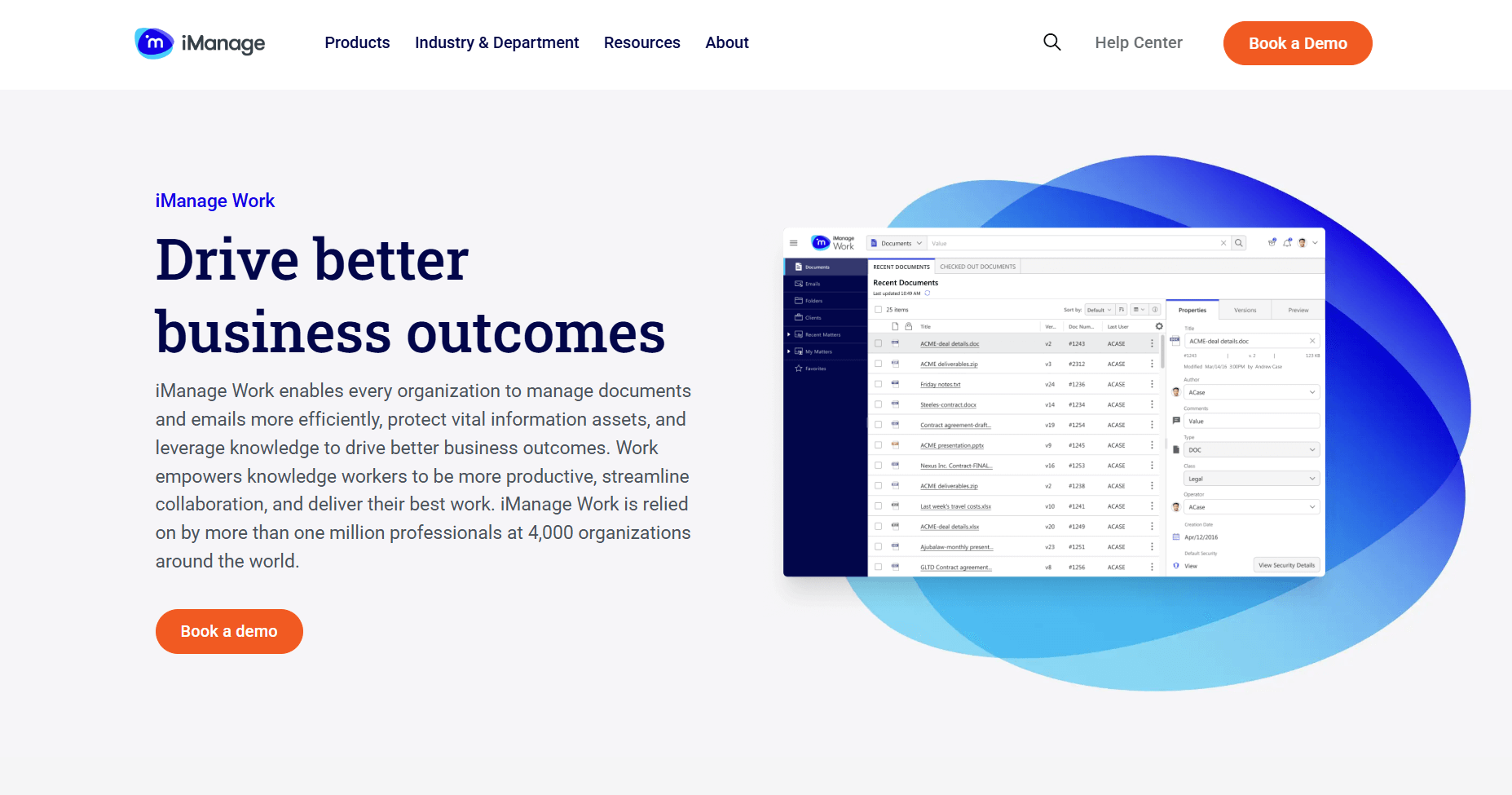
- What it does: iManage Work is a legal document management system built for organizations handling large case files. It groups documents by case, centralizes emails, and supports detailed governance settings.
- Who it’s for: Legal teams that manage high document volumes across multiple cases.
One thing that stood out during testing was how iManage Work handles search across long case records. I ran queries for documents, emails, and versions, and saw clear links back to each case. I reviewed retention and access rules to understand how they support compliance requirements. These controls help firms with strict obligations manage documents without manual tracking.
The workspace is dense, and it takes time to learn where each function lives. Smaller practices may find the system heavier than they need, but it performs well under high-volume demands.
Key features
- Advanced search: Find documents and emails across long histories.
- Governance rules: Apply retention and access policies.
- Microsoft 365 integration: Work with files from Outlook and desktop apps.
Pros
- Deep search across documents and email
- Strong compliance controls
- Built for heavy legal workloads
Cons
- Steeper learning curve
- More than smaller practices may require
Pricing
iManage Work uses custom pricing. Request a demo to learn more.
Bottom line
iManage Work supports heavy legal document management with search and governance tools built for complex cases. Smaller practices that want a simpler legal document system may prefer Clio or LexWorkplace.
4. Clio: Best for document storage inside a practice platform

- What it does: Clio includes a legal document management system within its broader practice suite. It organizes files by case, supports e-signatures, and lets you share documents with clients through its portal.
- Who it’s for: Legal practices that want document storage tied to a broader case workflow.
I thought the setup was straightforward when I tested Clio for legal document management. I uploaded files to case folders, linked them to tasks, and reviewed how documents tied to billing and communication.
The client portal made sharing simple for both sides. Document uploads and signatures were easy to track, and the case record stayed organized as I moved through testing.
The tradeoff is depth. Clio is broad, not specialized, so document controls are lighter than systems built for strict governance. It works well for practices that want coverage across many areas of their workflow.
Key features
- Case folders: Keep documents organized by case.
- E-signatures: Request signatures inside the platform.
- Client portal: Share documents and updates securely.
Pros
- Easy to learn and use
- Connects documents to tasks, billing, and messaging
- Built-in client sharing
Cons
- Limited version control
- Not suited for firms needing detailed governance
Pricing
Clio starts at $49 per user per month.
Bottom line
Clio works well if you want a legal document management system connected to tasks, billing, and communication. Teams that need tighter document governance may prefer NetDocuments or iManage Work.
5. LexWorkplace: Best for email and document organization
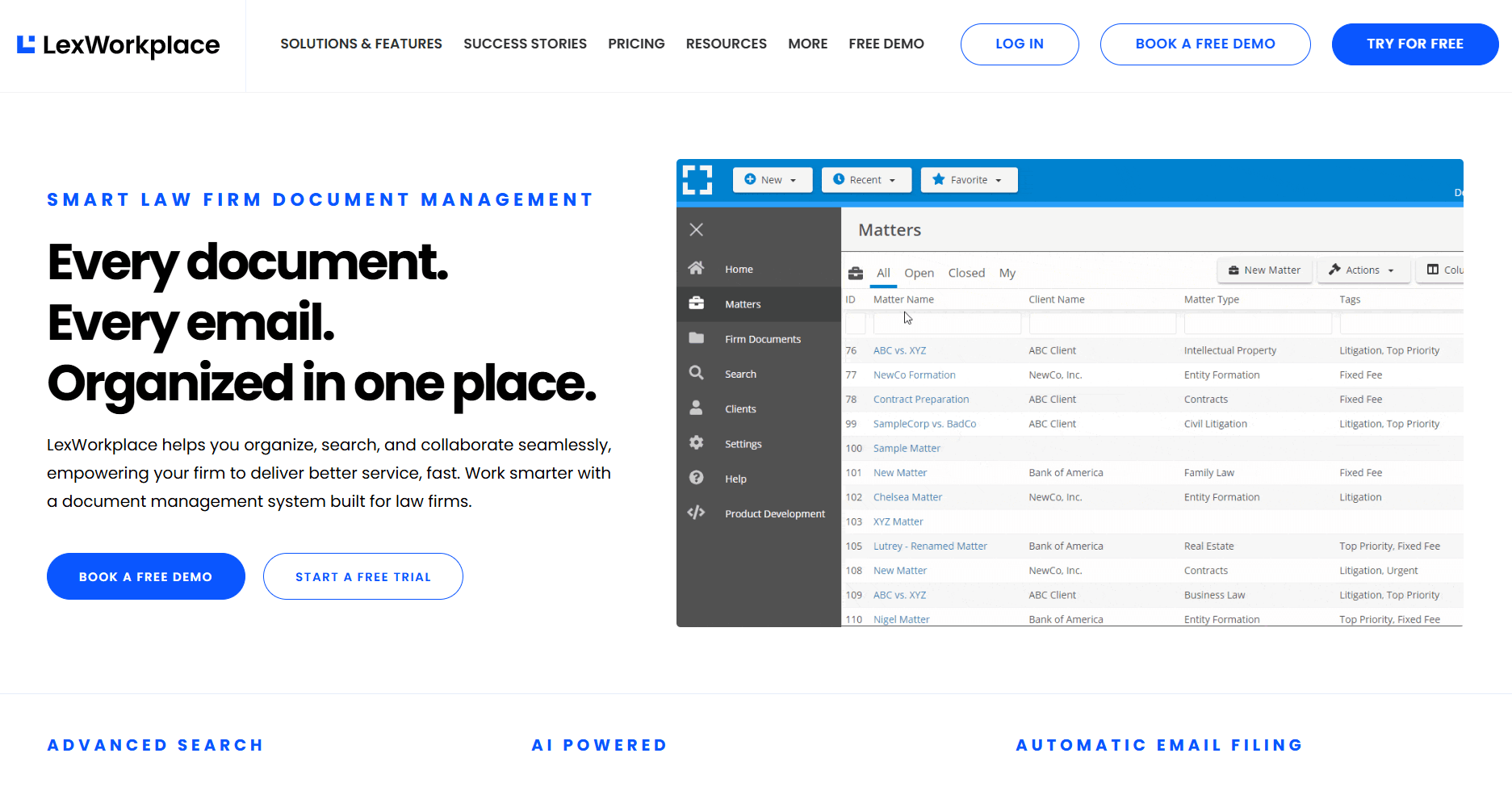
- What it does: LexWorkplace is a cloud-based legal document management system that organizes email, documents, and metadata by case. It supports OCR, tagging, and Microsoft 365 connections so case files and communication stay in one place.
- Who it’s for: Legal teams that want organized documents and email in a cloud system.
I tested LexWorkplace with Microsoft 365 to see how it handled legal document management, and the email capture was the strongest part. Messages were saved directly into the correct case folder, which helped with reviewing communication.
I checked OCR with scanned PDFs and images, and the search returned results across all formatted files. It reduced the guesswork of locating text in older documents.
The platform focuses on document clarity rather than full practice management. Billing and scheduling live outside the platform, and the price is higher than that of lightweight tools, but the organization structure supports firms that move between cases quickly.
LexWorkplace uses encrypted cloud storage and access controls to support secure legal document workflows.
Key features
- Email capture: Save Outlook messages into the right case folder.
- OCR scanning: Search text inside scanned documents.
- Microsoft 365 integration: Work with files across desktop and cloud apps.
Pros
- Strong organization for documents and email
- Clear case-based folders
- Reliable Microsoft 365 connection
Cons
- Higher cost than lighter systems
- Not a full practice management suite
Pricing
LexWorkplace starts at $395 per month, billed monthly.
Bottom line
LexWorkplace supports legal document management with strong organization for files and email. If you want broader practice tools in the same system, Clio or PracticePanther may work better.
6. SmartVault: Best for secure document sharing and organization
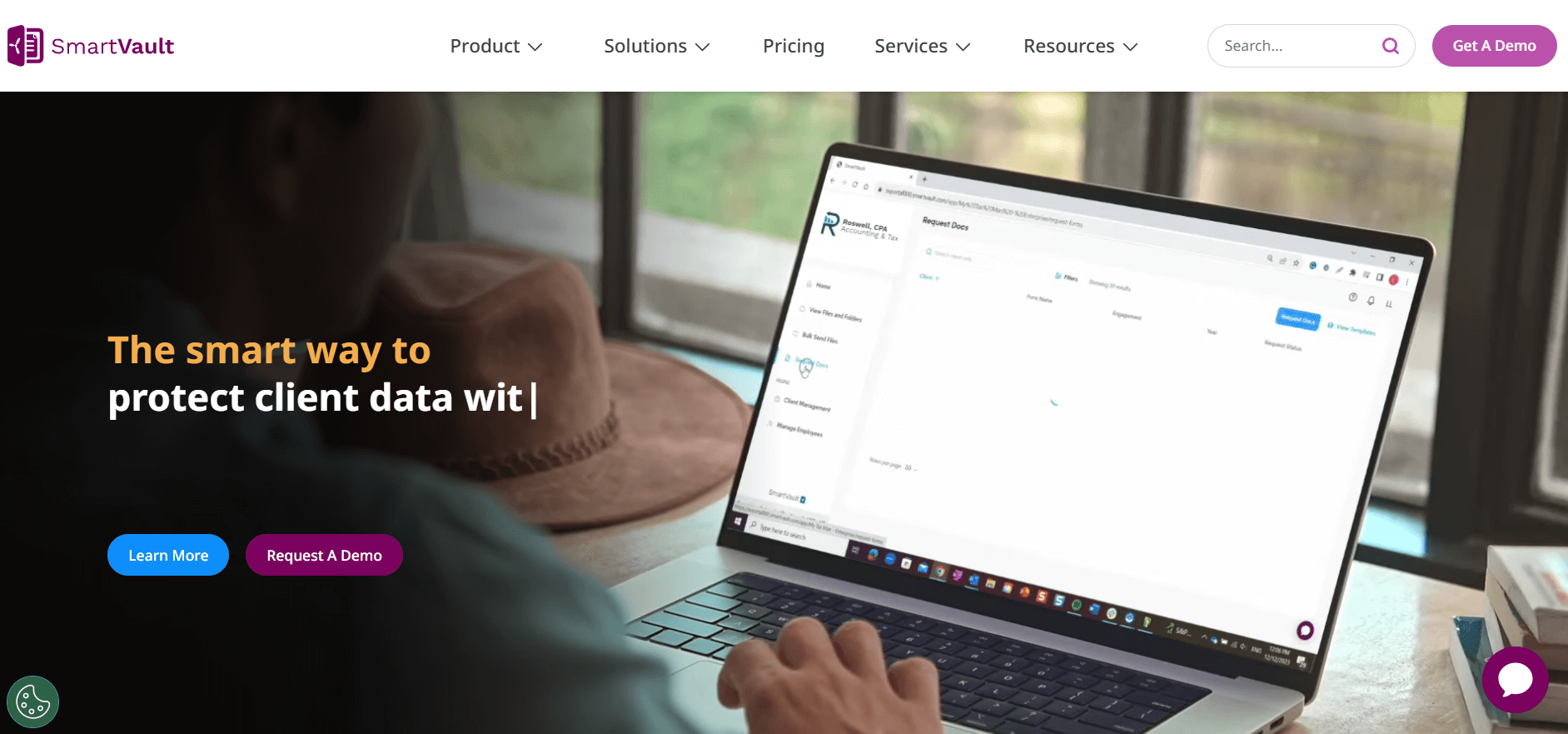
- What it does: SmartVault is a legal document management system focused on secure file storage and sharing. It supports folder permissions, client uploads, and encrypted file storage. You can organize documents by case and give clients controlled access to the files they need.
- Who it’s for: Legal teams that want simple, secure document handling without heavier workflow features.
I started testing SmartVault by checking how it handled client uploads and folder permissions. The structure made it easy to keep case documents separate, and access rules helped prevent files from being viewed by the wrong party.
Uploading large documents worked without delay, and the audit trail tracked who viewed or downloaded each file. The system stays simple, which supports predictable workflows but limits customization.
SmartVault does not include legal task management or case-level communication, so you’ll need another tool to manage case updates or scheduling. However, SmartVault supports compliance with SOC 2 Type II, HIPAA, and FINRA requirements, and it uses encryption in transit and at rest, which I think gives you a clear security posture for storing sensitive legal records.
Key features
- Secure folders: Organize documents with role-based permissions.
- Client upload links: Let clients submit documents directly.
- Audit tracking: See who viewed or downloaded each file.
Pros
- Easy for clients to use
- Clear permission controls
- Simple structure for document storage
Cons
- No built-in case management
- Limited tools for internal collaboration
Pricing
SmartVault starts at $55 per user per month, with a minimum of 3 users.
Bottom line
SmartVault gives you a straightforward legal document management system with secure sharing and predictable organization. If you want tasks, notes, or messaging connected to your documents, SmartVault alternatives like Clio or Assembly may be a better fit.
7. CosmoLex: Best for documents tied to billing activity

- What it does: CosmoLex offers a legal document management system inside its practice management suite. You can store files by case, connect documents to billing entries, and share them with clients through the portal.
- Who it’s for: Legal practices that want document organization linked to billing and accounting.
I thought CosmoLex stood out most when I checked how documents tied back to billing activity. Each file connected to related time entries and expenses, which helped me see how documents moved through the workflow.
Uploading documents was simple, and the case folders stayed organized as I added more files. The system does not offer deep version control or heavy governance settings, so it fits teams with moderate document needs.
Its built-in accounting tools give it an advantage if you want fewer systems handling back office work.
Key features
- Case folders: Keep documents tied to each case.
- Billing connections: Link documents to time and expense records.
- Client portal: Share files and updates securely.
Pros
- Combines documents with billing
- Simple file organization
- Portal supports secure sharing
Cons
- Limited document control depth
- Interface can be busy during setup
Pricing
CosmoLex starts at $109 per user per month.
Bottom line
CosmoLex works well if you want a legal document management system inside a billing and accounting platform. Teams that want deeper document rules or stronger email handling may prefer NetDocuments or LexWorkplace.
8. MyCase: Best for simple client sharing and file access
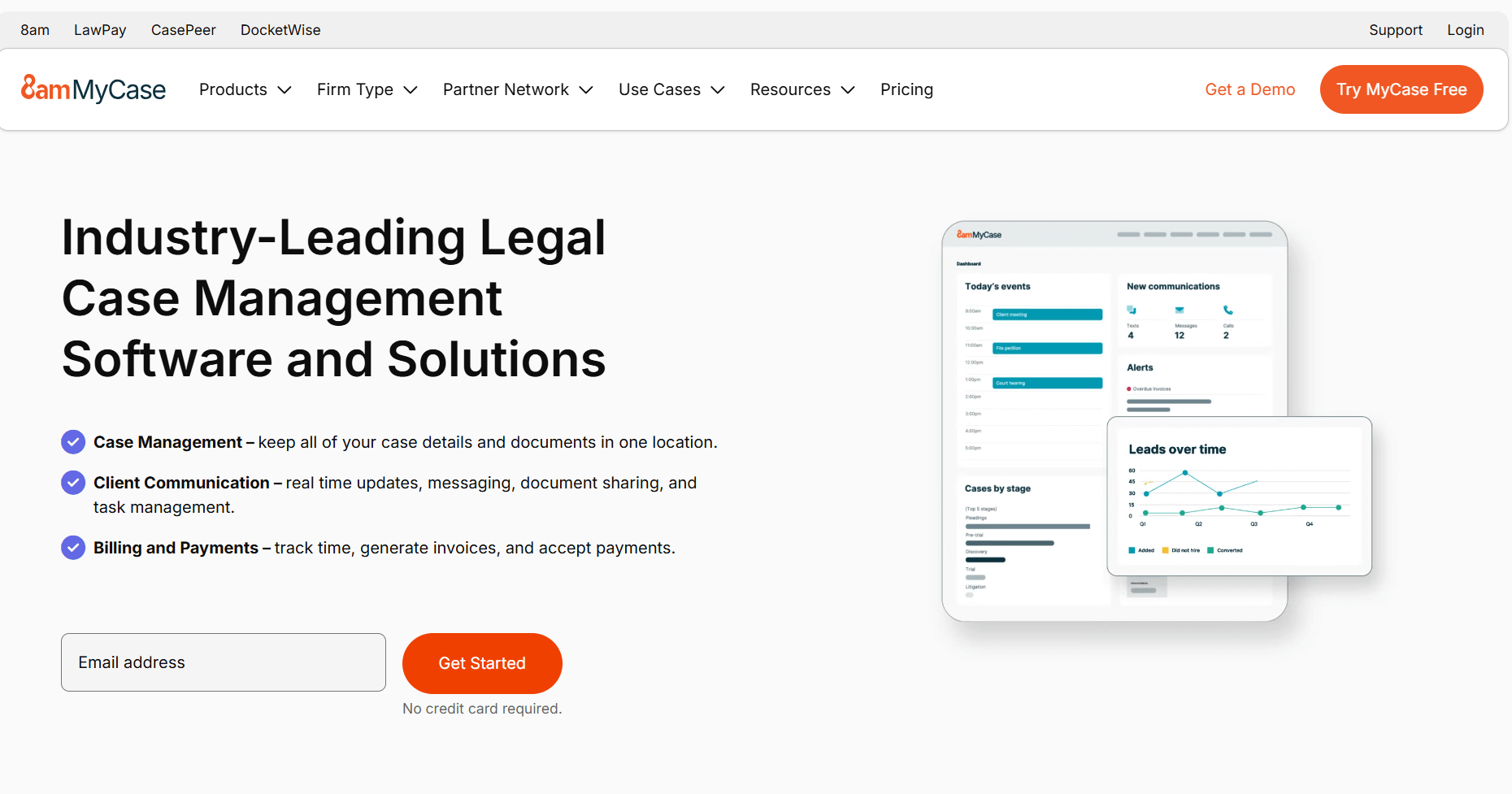
- What it does: MyCase includes a legal document management system with client file access, e-signatures, and case folders. You can upload documents, request signatures, and share files with clients through its built-in portal. It focuses on predictable workflows for everyday case needs.
- Who it’s for: Legal teams that want organized documents with simple sharing tools.
One thing I noticed during testing was how MyCase keeps document sharing simple for both sides. Uploading files to case folders took little time, and clients could see only what I approved.
I checked how e-signatures worked and saw documents return to the case record without manual sorting. MyCase focuses on clarity rather than advanced structure, so it lacks a deeper version history or governance rules.
For firms with moderate document needs and frequent client updates, it covers most basics without adding complexity.
Key features
- Case folders: Organize documents for each case.
- E-signatures: Request signatures and track status.
- Client portal: Share files and updates securely.
Pros
- Simple for clients to use
- Easy document upload and sharing
- Built-in signature workflow
Cons
- Limited version control
- Not designed for heavy compliance needs
Pricing
MyCase starts at $39 per user per month.
Bottom line
MyCase supports legal document management with straightforward sharing and signatures. Teams that need deeper organization or strict control may prefer LexWorkplace or NetDocuments.
9. PracticePanther: Best for template-driven document workflows
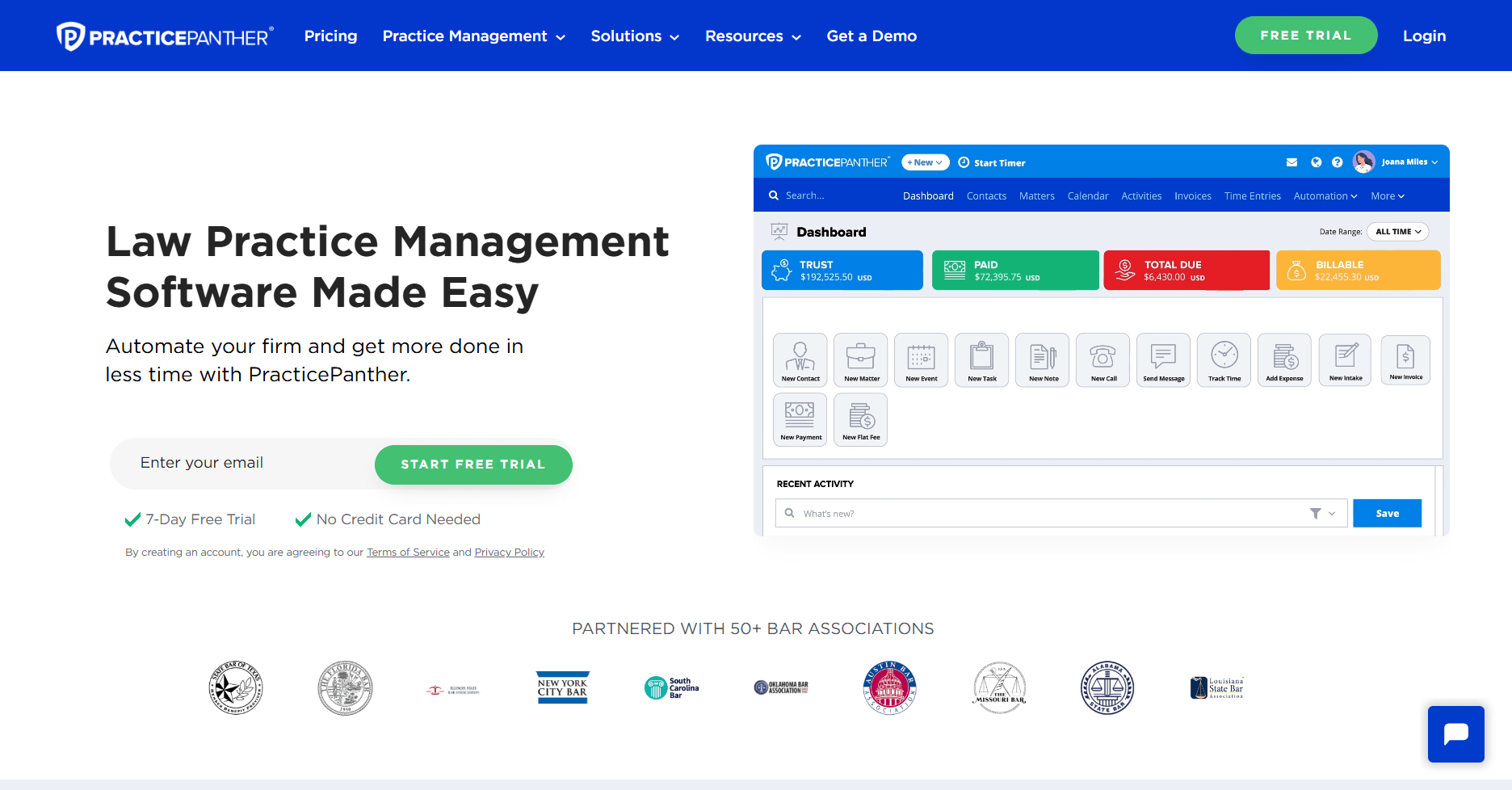
- What it does: PracticePanther provides a legal document management system alongside case management tools. You can store documents by case, generate files from templates, and share them through the client portal. It connects documents to tasks and deadlines so you can track what needs attention.
- Who it’s for: Legal practices that want document creation tied to case tasks and timelines.
I tested PracticePanther by building document templates and checking how they connected to case records. The generation process saved time and produced consistent documents, which can reduce manual drafting in busy practices.
Uploads and sharing worked smoothly, and tasks connected cleanly to document updates. The limitation shows up in long-term storage. The system offers basic document organization but lacks detailed version tracking.
It works well when you need templates and workflow visibility more than deep document governance.
Key features
- Document templates: Generate case documents quickly.
- Case folders: Store files in organized case records.
- Client portal: Share documents and updates.
Pros
- Helpful templates for repeat documents
- Easy to link documents to tasks
- Portal supports client communication
Cons
- Limited version history
- Not suited for strict governance requirements
Pricing
PracticePanther starts at $49 per user per month.
Bottom line
PracticePanther offers a legal document management system that supports template-driven workflows. Teams that need heavier structure or compliance features may prefer iManage Work or NetDocuments.
10. CaseFox: Best for budget-friendly document handling
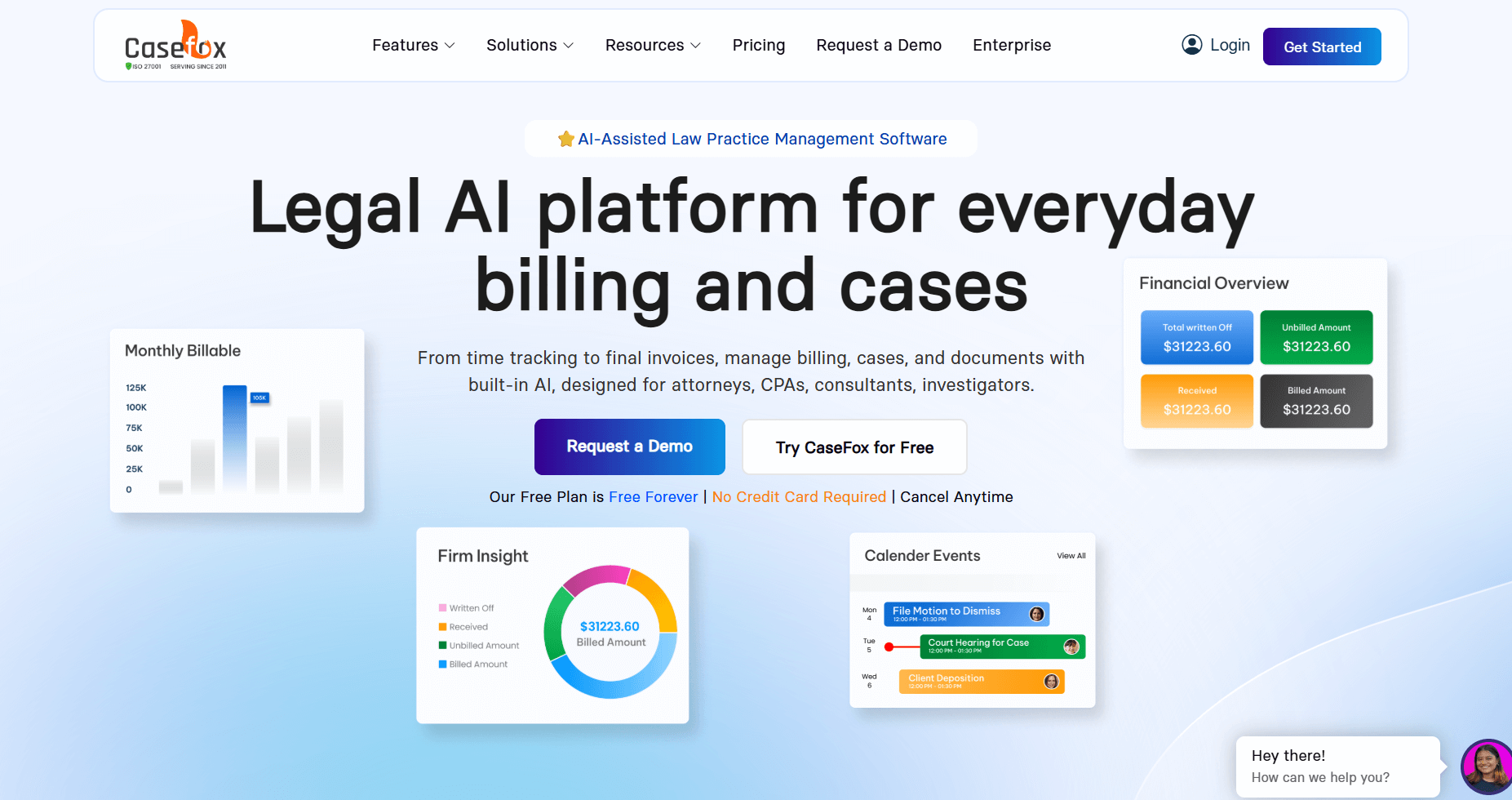
- What it does: CaseFox provides a lightweight legal document management system with simple uploads, case folders, and client sharing. You can store documents for each case and give clients access to the files they need. It focuses on basic organization without extra complexity.
- Who it’s for: Smaller firms or solo practices that want straightforward document handling at a lower cost.
I started testing CaseFox by checking how easily documents could be uploaded and assigned to a case. The experience stayed simple, which fits teams that want to avoid long setup steps.
Client sharing worked reliably, and the system made it clear which files were visible externally. CaseFox does not offer advanced tagging, versioning, or governance rules, so it fits firms with light document needs.
It covers the core tasks but may feel limited as your caseload grows.
Key features
- Case file storage: Keep documents tied to each case.
- Client sharing: Allow clients to view approved files.
- Simple uploads: Add documents without extra setup.
Pros
- Easy to learn
- Budget friendly
- Straightforward sharing
Cons
- Very limited structure
- No advanced document controls
Pricing
CaseFox starts at $39 per user per month.
Bottom line
CaseFox delivers a basic legal document management system for teams that want simple organization. Practices that need deeper structure or stronger integrations may prefer Clio or SmartVault.
11. Rocket Matter: Best for teams sharing documents during active cases
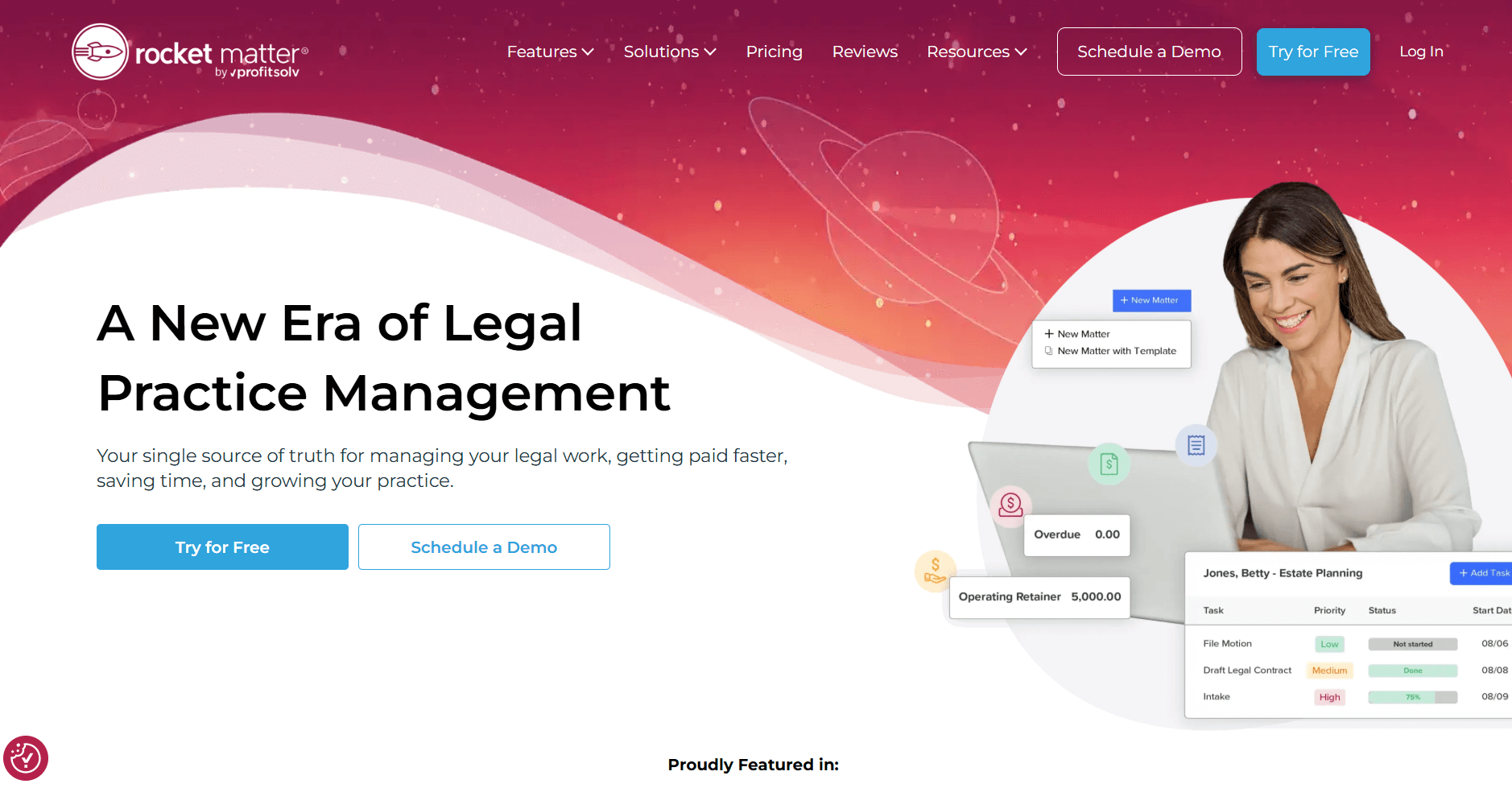
- What it does: Rocket Matter includes a legal document management system that stores files by case, supports custom templates, and lets teams share documents during ongoing work. It ties documents to tasks and deadlines so you can track what needs attention.
- Who it’s for: Legal teams that collaborate on documents while moving cases forward.
I checked Rocket Matter by uploading documents and linking them to tasks and deadlines. The structure kept case work organized and gave the team a clear view of what needed action.
Custom templates worked well for repeat documents, and sharing options made it easy to coordinate files. The limitation appears when you need detailed document controls.
Version history exists, but it’s lighter than systems designed for more complex governance. It fits firms that want visibility across tasks and documents without heavy configuration.
Key features
- Custom templates: Generate consistent case documents.
- Case folders: Store and organize files.
- Team collaboration: Share documents across active cases.
Pros
- Clear link between documents and tasks
- Good for ongoing case coordination
- Simple template creation
Cons
- Limited advanced document controls
- Interface can be dated
Pricing
Rocket Matter starts at $49 per user per month.
Bottom line
Rocket Matter supports legal document management with tools that keep documents and tasks connected. Practices needing stricter controls or deeper search may lean toward LexWorkplace or NetDocuments.
12. TimeSolv: Best for light document organization with time tracking
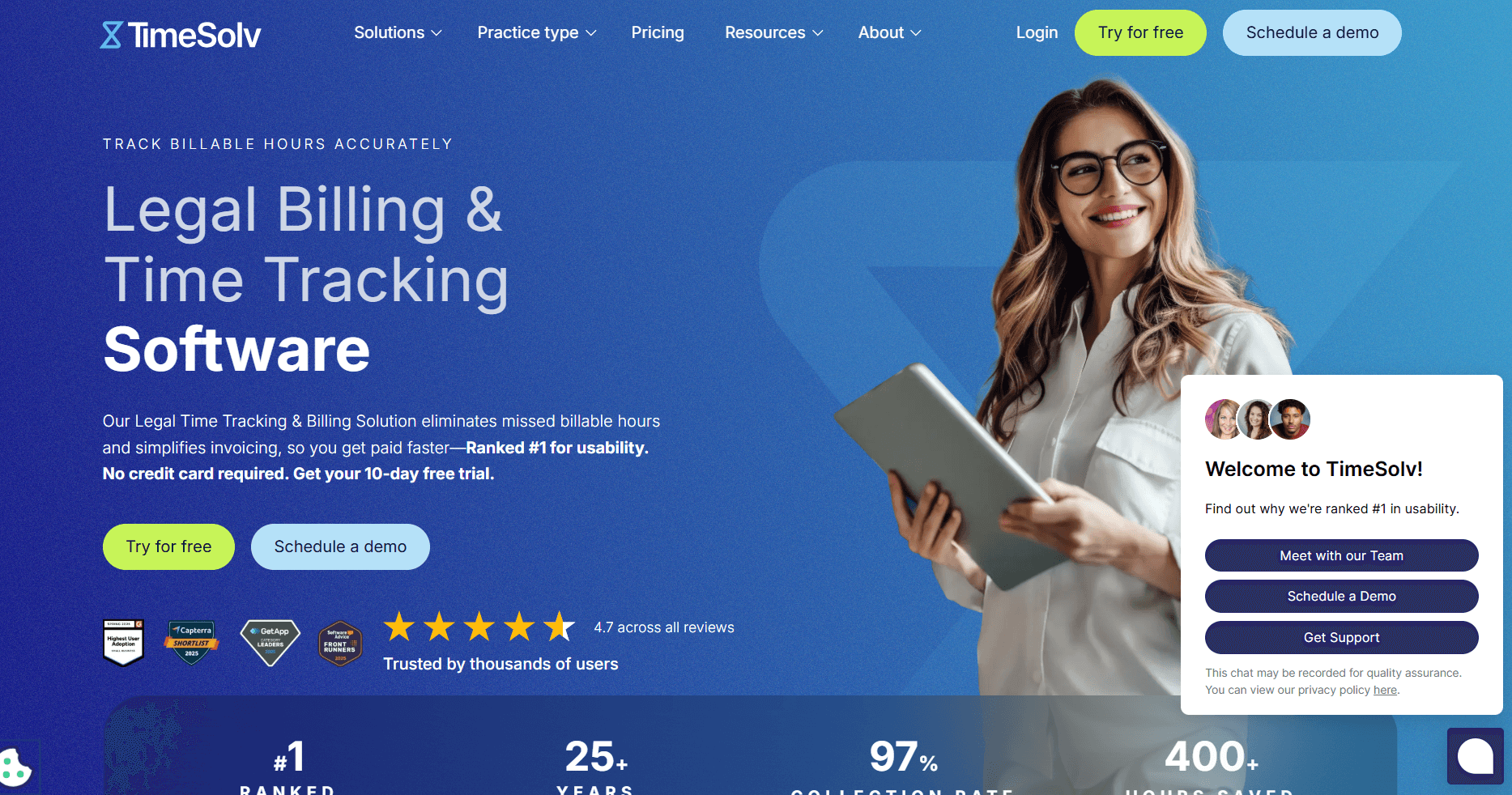
- What it does: TimeSolv includes a basic legal document management system that stores case files alongside time and project details. You can upload documents, attach them to cases, and reference them during billing. It focuses on keeping documents visible within your time tracking workflow.
- Who it’s for: Firms that want simple document storage connected to time and billing.
Document handling in TimeSolv centers on linking files to cases and billing entries. I thought the structure worked for light document needs, and uploads were quick to organize.
It's clear that document management is not the main focus, but the connection to billing can reduce confusion during invoicing. The system does not include deep organization, version control, or client sharing.
It fits firms that need minimal document tools alongside strong time tracking.
Key features
- Case file storage: Keep documents connected to case records.
- Billing links: Reference documents during invoicing.
- Simple uploads: Add files without configuration.
Pros
- Easy to use
- Useful link between documents and billing
- Quick document storage
Cons
- Very limited document depth
- No client sharing or advanced search
Pricing
TimeSolv starts at $38 per user per month.
Bottom line
TimeSolv offers a light legal document management system built around time tracking and invoicing. Teams that need more robust document workflows may prefer Clio or PracticePanther.
How I tested these legal document management systems
I spent time working inside each platform to understand how well it handles case work. I wanted to see how each system manages documents once a case is active, how easy it is to keep information accurate, and whether the setup supports the way legal teams actually move through a workflow.
Here’s what I checked:
- Document structure: I looked at how documents are grouped, how case folders are organized, and whether the layout stays clear as the file count grows.
- Version clarity: I checked how each system tracks document changes, where version history lives, and how simple it is to compare drafts.
- Search accuracy: I ran searches for names, dates, and terms to see which tools return useful results and which ones struggle with larger document sets.
- Permission controls: I reviewed how each platform handles access rules, user roles, and client visibility so case documents stay protected.
- Client sharing: I tested how clients upload or receive files, how updates appear on their side, and whether sharing creates extra steps for the team.
- AI and workflow support: I checked which tools help you prepare for meetings, gather context, or organize next steps without adding extra work.
- Setup and day-to-day use: I looked at how long configuration takes and how much effort is needed to keep the system running smoothly as cases evolve.
Which legal document management system should you choose?
The right choice of legal document management system depends on your case volume, security expectations, how your team handles documents, and how much structure you want around access and version tracking. Choose:
- Assembly if you want clients to review documents, upload files, and follow case progress in a secure portal with encrypted storage and SOC 2 aligned practices.
- NetDocuments if your firm needs strict structure, detailed access rules, and predictable control for large sets of legal documents.
- iManage Work if you handle long-running cases and want strong search, governance, and high-volume document controls.
- Clio if you want document storage that connects to tasks, billing, communication, and broader practice management.
- LexWorkplace if your team relies on Microsoft 365 and needs organized email capture, OCR search, and encrypted cloud storage.
- SmartVault if secure sharing, SOC 2 Type II support, and client upload workflows matter more than advanced case features.
- CosmoLex if you want simple document storage that ties directly into billing and accounting activity.
- MyCase if you want easy client sharing, e-signatures, and straightforward document organization.
- PracticePanther if you rely on templates and want document creation linked to tasks and deadlines.
- CaseFox if you need basic document handling at a lower cost.
- Rocket Matter if your priority is sharing documents during active case work with clear task connections.
- TimeSolv if you want light document storage tied to time tracking and invoicing.
My final verdict
NetDocuments, iManage Work, and LexWorkplace deliver strong control for firms that handle large volumes of documents, while Clio and MyCase work better for practices that want simpler storage tied to broader case workflows. SmartVault stands out for secure sharing, but it stops short when you need documents connected to the full flow of legal work.
Assembly gives you one system where documents, case details, and client updates live in the same place your clients actually use. I’ve found this reduces follow-up questions and keeps everyone aligned without moving work across tools.
Get started with Assembly
Some legal document management systems stop at file storage. They organize documents, but they don’t support the ongoing client interaction that happens once a case is active.
Assembly brings these parts together in one system. You can manage documents, client updates, and case activity without switching tools. The client portal keeps files, contracts, invoices, and messages in one place so both sides stay clear on what’s happening.
Here’s what you can do with Assembly:
- See the full client record: Notes, files, payments, and messages stay in one organized space. You’ll spend less time switching platforms because the key details are already collected for you.
- Prep faster for meetings: The AI Assistant summarizes recent client activity and communication, helping you walk into calls with a clear picture of what’s been discussed and what’s outstanding.
- Stay ahead of clients: Highlight patterns that may show churn risk or upsell potential, making outreach more timely and relevant.
- Cut down on admin: Automate repetitive jobs like reminders, status updates, or follow-up drafts that used to take hours. The Assistant handles the busywork so your team can focus on clients.
Ready to give clients a clear place to review documents and track case progress? Start your free Assembly trial today.