



A client onboarding portal gives new customers one place to track progress, complete tasks, and exchange documents. I tested dozens of platforms to find 13 that help move implementation forward with less manual coordination in 2026.
13 Best client onboarding portal tools: Quick comparison
| Tool | Best for | Annual price | Strengths |
|---|---|---|---|
| OnRamp | Complex B2B SaaS implementations | Custom pricing | Client portal, project management, AI insights, workflow automation |
| Rocketlane | Professional services with utilization tracking | $19/user/month | PSA tools, resource planning, client portals, AI features |
| GUIDEcx | Stakeholder visibility across projects | Custom pricing | Role-based views, portfolio tracking, AI agents |
| Assembly | End-to-end branded client portals | $29/month | Custom portals, CRM, dashboards, recurring automations |
| Dock | Sales to customer success handoff | $350/month | Connected workspaces, AI docs, content management |
| Arrows | HubSpot-based onboarding workflows | Custom pricing | Deep HubSpot sync, pipeline visibility, multilingual support |
| Moxo | Compliance-heavy approval workflows | $960/year | Secure workflows, AI agents, audit trails |
| ChurnZero | Subscription onboarding and retention | Custom pricing | Health scoring, in-app engagement, journey automation |
| Planhat | Complex product implementations | Custom pricing | Usage analytics, revenue tracking, onboarding management |
| Totango | Segmented onboarding at scale | Custom pricing | Playbooks, outcome tracking, customer health monitoring |
| Vitally | Data-driven customer success teams | Custom pricing | Real-time data sync, dashboards, automated workflows |
| Baton | Multi-party onboarding coordination | Custom pricing | Stakeholder coordination, milestone tracking, handoffs |
| ClientSuccess | Mid-market SaaS customer success | Custom pricing | Automation, segmentation, onboarding templates |
What is a client onboarding portal?
A client onboarding portal is a shared digital workspace where new customers and your team track tasks, exchange documents, and monitor progress through implementation. It puts communication, file uploads, and milestone tracking in one place, so everyone knows what needs to happen next without relying on email threads or spreadsheets.
The portal acts as a single source of truth during onboarding. Your team sets up the workflow and invites clients to their dedicated space. Clients log in to see what they need to complete, upload required files, and check their progress. Both sides see the same information at the same time, which can help reduce confusion and back-and-forth requests for updates.
Why do client onboarding portals matter?
Client onboarding portals matter because they help reduce the manual coordination work that slows down implementations. When tasks, documents, and communication are in one place, both your team and your clients can spend less time chasing updates and more time moving forward.
Here's what portals can help with:
- Fewer status update emails. Clients can check their progress anytime instead of waiting for your team to send updates.
- Faster document collection. Upload requests and file sharing happen in the portal instead of across email threads, where attachments may get lost.
- Clearer task ownership. Everyone sees who's responsible for what and when things are due.
- Better visibility for your team. Managers can check onboarding status across multiple clients without asking each person for updates.
- More consistent process. Templates help your team run similar onboarding processes the same way instead of reinventing the workflow each time.
Key features to look for in a client onboarding portal tool
The features that matter most depend on whether you need heavy coordination across teams, document-intensive workflows, or standardized processes you can template and reuse.
Here's what to focus on when comparing tools:
Customer-facing portal interface
Your clients shouldn't have to dig through your internal project management tool to check their progress. Look for portals that give customers a branded space where they can see their tasks, upload documents, and track milestones without seeing internal work. The simpler the interface, the more likely clients will use it instead of defaulting back to email.
Task and milestone tracking
Seeing what's done, what's waiting, and what's blocking progress in one view makes it easier to prioritize follow-ups. I’d look for task lists with dependencies so you can map out the order in which things need to happen. Some tools also send automatic reminders when tasks are overdue, which can help when you're juggling multiple onboarding tasks.
Document collection and storage
Built-in file upload requests can help reduce the back-and-forth of email attachments. Most onboarding requires contracts, configurations, account details, and other files from clients. I recommend a tool with version tracking so you know which document is the current one, especially when clients send multiple revisions.
Template and workflow automation
Templates save setup time when you're onboarding similar clients repeatedly. You build the workflow once, then adjust it slightly for each new client. Some portals also automate steps like sending welcome emails or creating tasks when a milestone is completed. This matters more if your process is fairly standardized.
Reporting and analytics
Dashboard views can help you spot which onboarding processes are falling behind when you're managing several at once. Look for tools that show completion rates, average onboarding time, and bottleneck tasks across clients. This type of visibility can help identify where the process consistently slows down so you can address it.
Integration with your existing tools
Portals that sync with your CRM, project management tool, or communication platform can reduce duplicate data entry. I’ve found native integrations tend to work better than Zapier connections when you need real-time updates between systems.
1. OnRamp: Best for complex B2B SaaS implementations
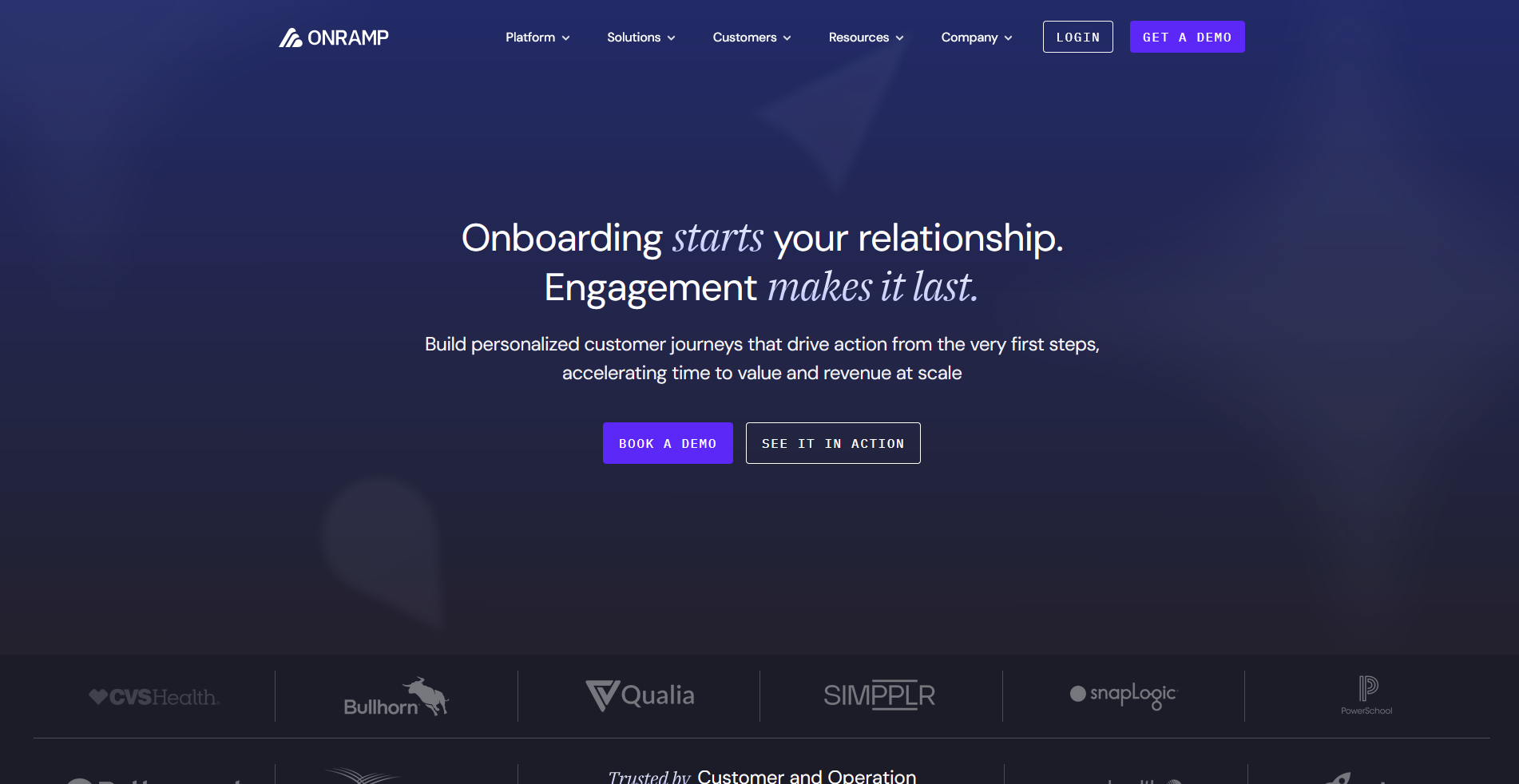
- What it does: OnRamp is a customer onboarding platform with separate interfaces for clients and internal teams managing implementation projects.
- Best for: B2B SaaS companies running multi-stakeholder implementations that require coordination across customer teams, internal departments, and external partners.
I set up a mock onboarding workflow to test how OnRamp handles the dual-interface approach. The customer portal shows progress, tasks, and resources without exposing internal project management details like team assignments or time tracking. The downside is that you're paying for a comprehensive platform, so teams with simpler onboarding needs might not use the full feature set.
Key features
- Dual-interface system: Customers access a branded portal while your team works in a separate project management view with resource allocation and timeline tracking.
- Dynamic process automation: Set up workflows that trigger tasks, send notifications, and update status based on completion milestones or custom rules.
- AI-powered insights: Analyze onboarding data to identify bottlenecks, predict delays, and surface patterns across your implementation portfolio.
Pros and cons
| Pros | Cons |
|---|---|
| Customer portal and internal project management tools work together without exposing backend complexity to clients | Enterprise-level features may feel excessive for simple onboarding workflows |
| Automation reduces the need for manual status updates and follow-up emails | Learning curve for teams that need to navigate both internal and client-facing interfaces |
| Portfolio-level reporting helps identify trends across multiple implementations |
What users say
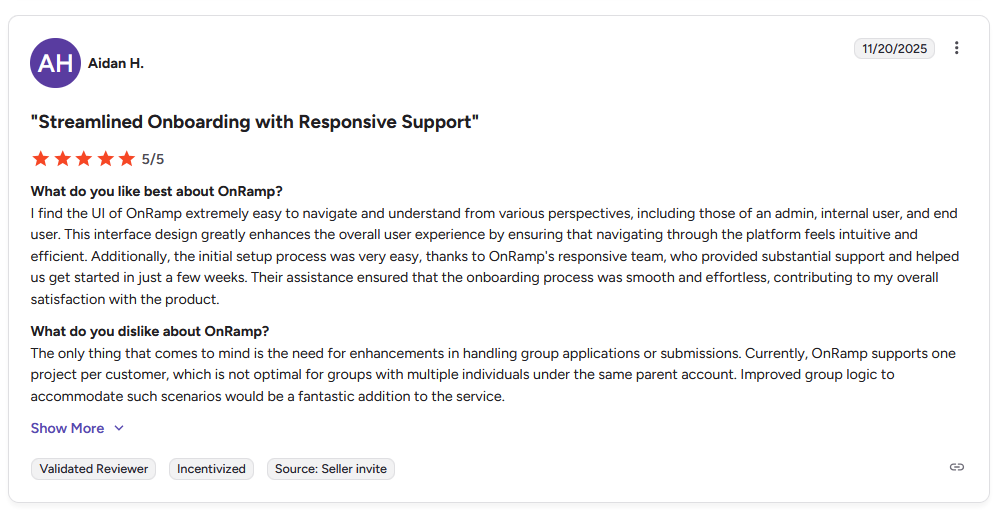
Pro: "I find the UI of OnRamp extremely easy to navigate and understand from various perspectives, including those of an admin, internal user, and end user. … The initial setup process was very easy, thanks to OnRamp's responsive team, who provided substantial support and helped us get started in just a few weeks." - Aidan H., G2
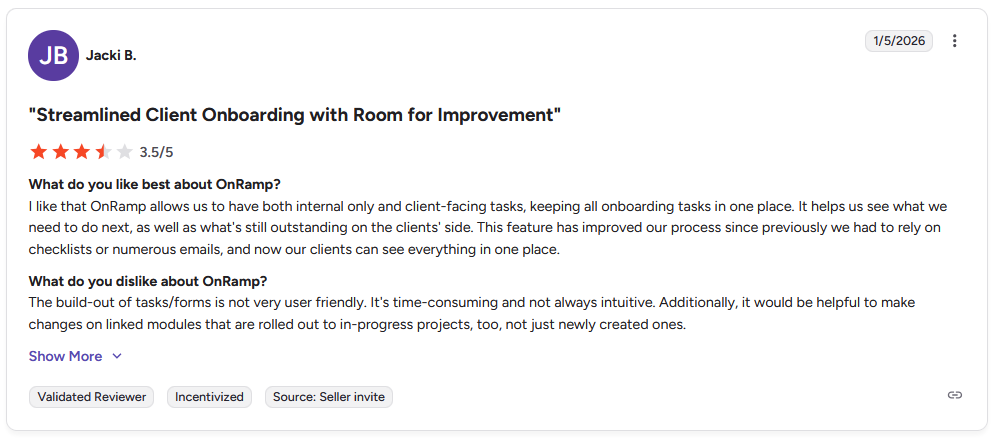
Con: "The build-out of tasks/forms is not very user-friendly. It's time-consuming and not always intuitive. Additionally, it would be helpful to make changes on linked modules that are rolled out to in-progress projects, too, not just newly created ones." - Jacki B., G2
Pricing
OnRamp offers custom pricing.
Bottom line
OnRamp's strength is keeping customer-facing onboarding separate from internal project management so your team gets full visibility without exposing backend details to clients. If you want a platform that handles sales rooms and customer success alongside onboarding, Dock might be a better fit.
2. Rocketlane: Best for professional services with utilization tracking
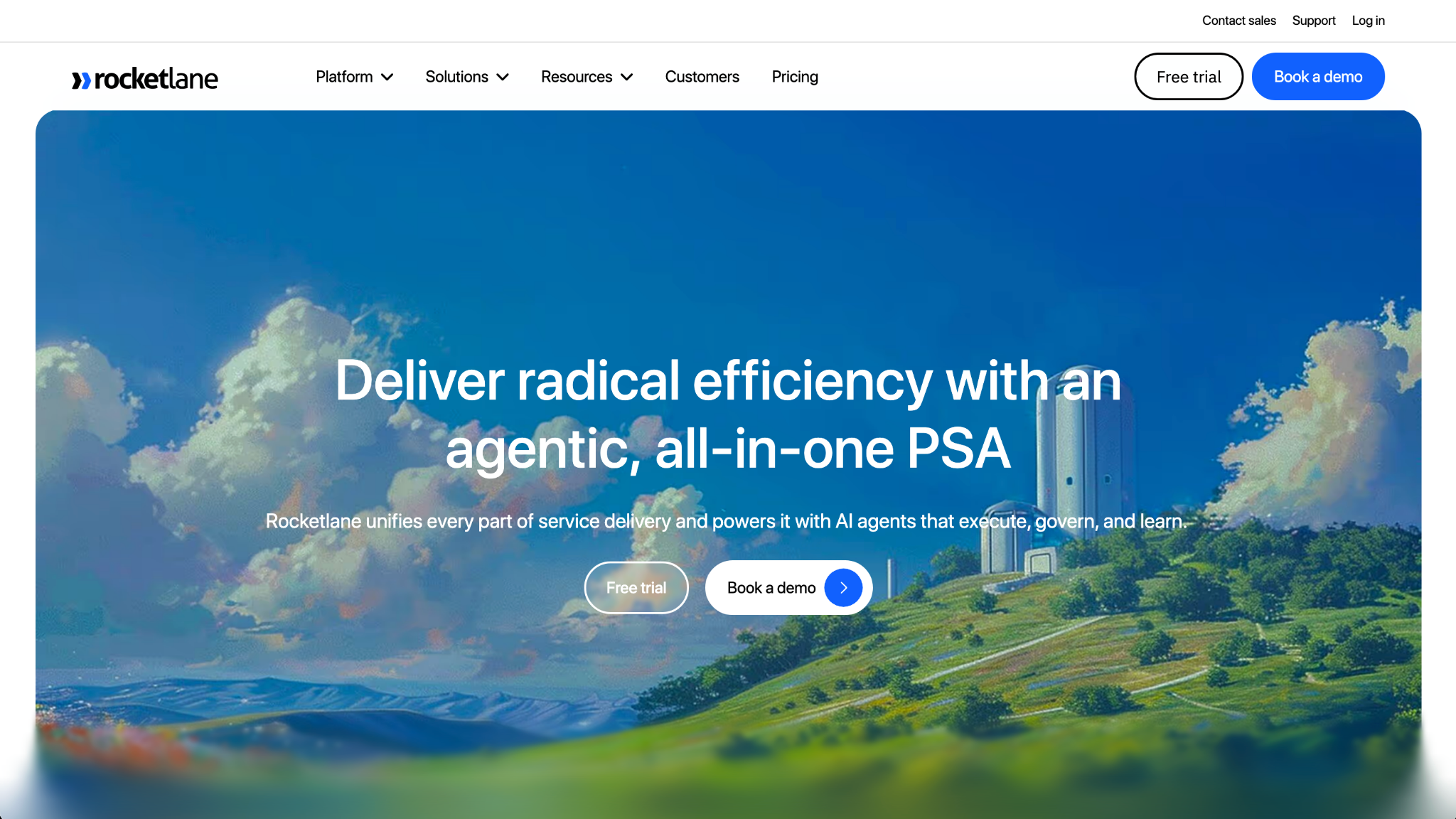
- What it does: Rocketlane is a professional services automation (PSA) platform with customer onboarding portals, resource planning, and time tracking built in.
- Best for: Consulting firms, agencies, and professional services teams that need to track billable hours, manage team capacity, and run client onboarding in one system.
I built a sample onboarding project to test how the PSA features work with the customer portal. Resource allocation connects directly to client timelines, so you can assign team members, track utilization, and see how delays affect capacity across projects. The platform is built for billable services work, so teams that don't track hours or profitability might not need the full feature set.
Key features
- Resource planning: Assign team members to onboarding projects, track capacity, and see utilization rates across your service delivery team.
- White-labeled customer portals: Give clients a branded space to view tasks, upload documents, and track implementation progress under your company name.
- Agentic AI features: Use AI to summarize project status, draft client updates, and identify risks based on task completion patterns.
Pros and cons
| Pros | Cons |
|---|---|
| PSA and onboarding tools work together, reducing the need for separate systems for capacity planning and delivery | Mobile app UI and performance could be improved |
| Resource planning helps prevent team burnout by showing utilization before committing to new projects | Timesheet integration with tools like Outlook and Teams is limited |
| Customer portal keeps clients engaged without requiring them to learn internal project workflows |
What users say
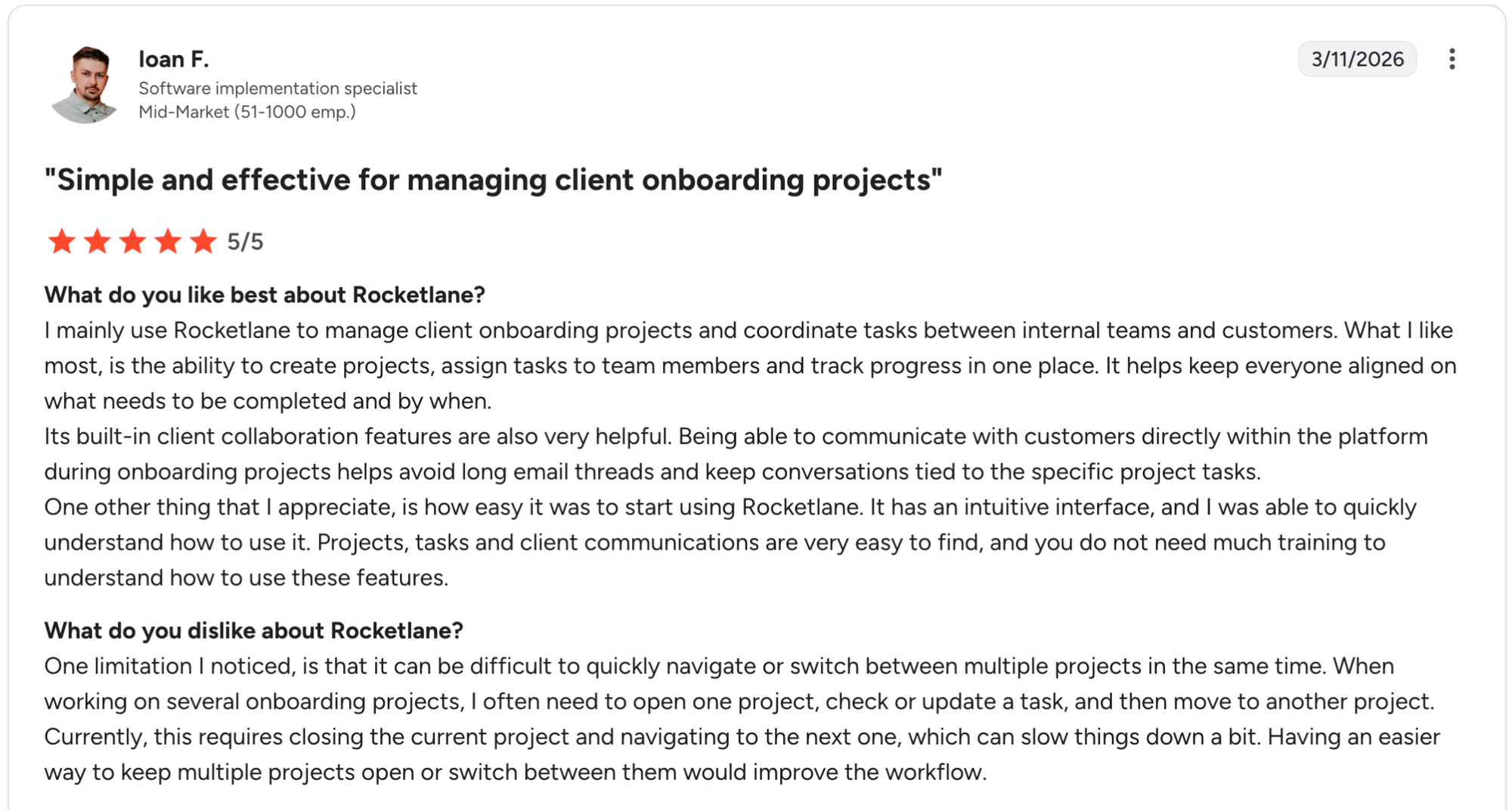
Pro: "I mainly use Rocketlane to manage client onboarding projects and coordinate tasks between internal teams and customers. What I like most is the ability to create projects, assign tasks to team members and track progress in one place. … Its built-in client collaboration features are also very helpful." - Ioan F., G2
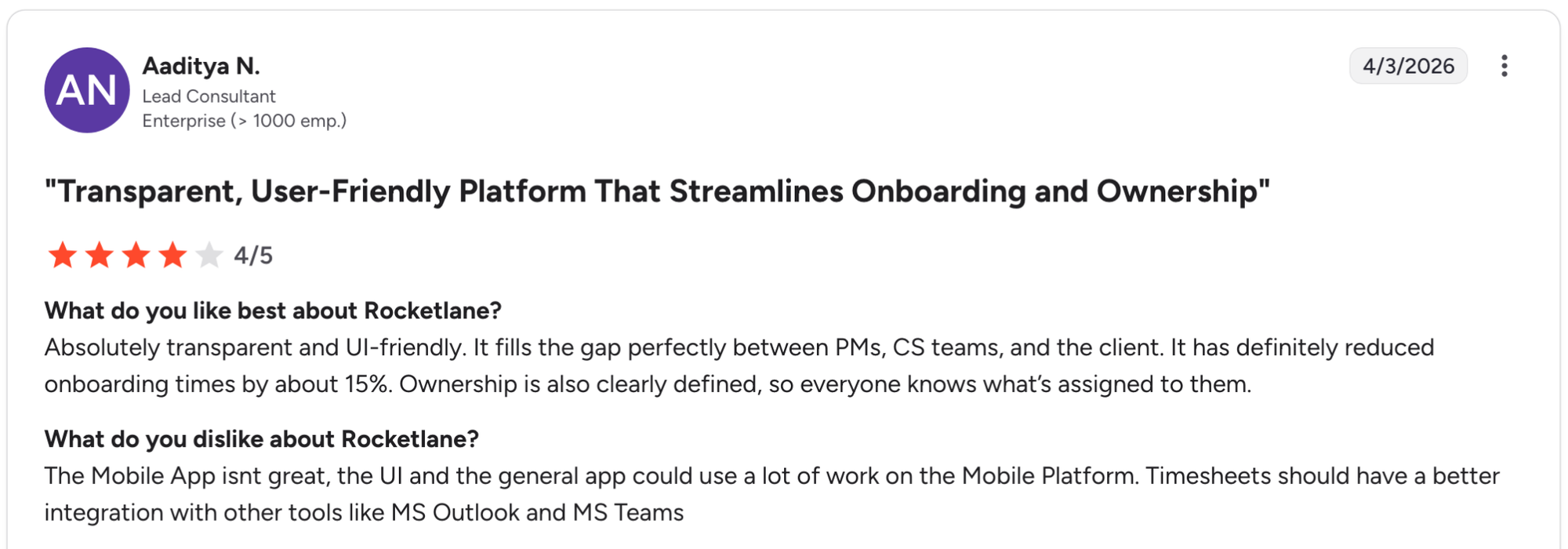
Con: "The Mobile App isnt great, the UI and the general app could use a lot of work on the Mobile Platform. Timesheets should have a better integration with other tools like MS Outlook and MS Teams." - Aaditya N., G2
Pricing
Rocketlane starts at $19 per member per month with a minimum of 5 members.
Bottom line
Rocketlane works when you need onboarding and professional services management in the same platform rather than stitching together separate tools for client delivery and team utilization. If you need a client portal without the PSA layer, Assembly might be a better fit.
3. GUIDEcx: Best for structured visibility across stakeholders
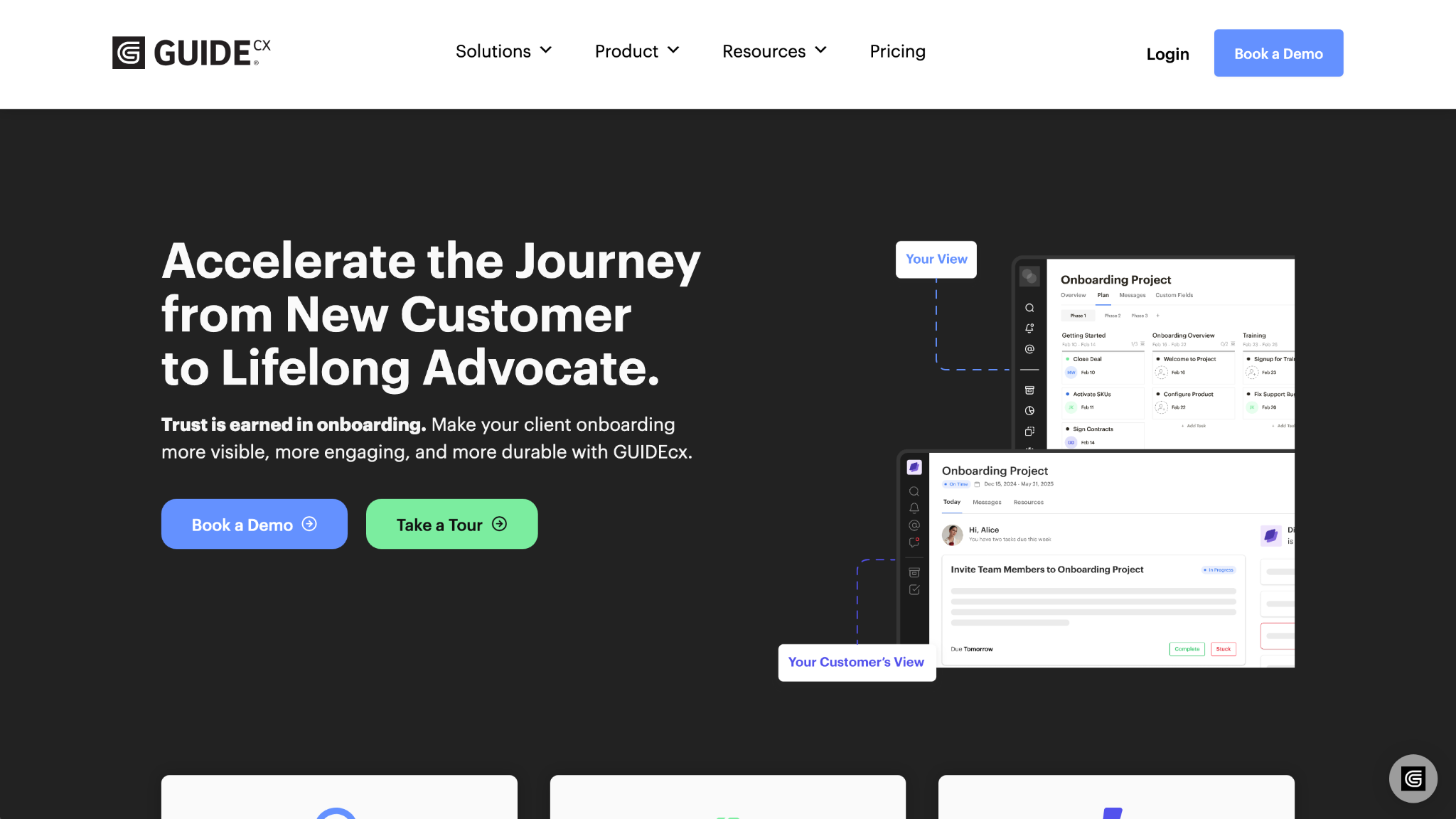
- What it does: GUIDEcx is a client onboarding platform with role-based views, AI agents, and portfolio-level reporting for managing implementations across teams.
- Best for: Organizations that need to give different stakeholders (executives, project managers, clients) tailored views of onboarding progress without overwhelming anyone with irrelevant details.
I created a multi-project setup to test the role-based permissions in GUIDEcx. Executives get portfolio metrics, project managers see task details, and clients access only their project. The search behavior automatically hides projects that haven't been updated recently, so you need to manually adjust filters to find older implementations.
Key features
- Role-based views: Control what executives, project managers, and clients see so each stakeholder gets relevant information without unnecessary detail.
- AI agents: Use AI to identify process bottlenecks, predict project delays, and suggest optimizations based on patterns across your onboarding portfolio.
- Portfolio reporting: Track completion rates, average onboarding time, and resource allocation across all active implementations in one dashboard.
Pros and cons
| Pros | Cons |
|---|---|
| Keeps internal teams and clients aligned on project status | Default search filters hide inactive projects, requiring manual adjustment to find stalled work |
| Role-based access gives clients a clean progress view while teams retain full project detail | Recurring meetings must be tied to specific tasks, adding extra setup steps |
| Portfolio view helps identify which onboardings need attention across your client base |
What users say
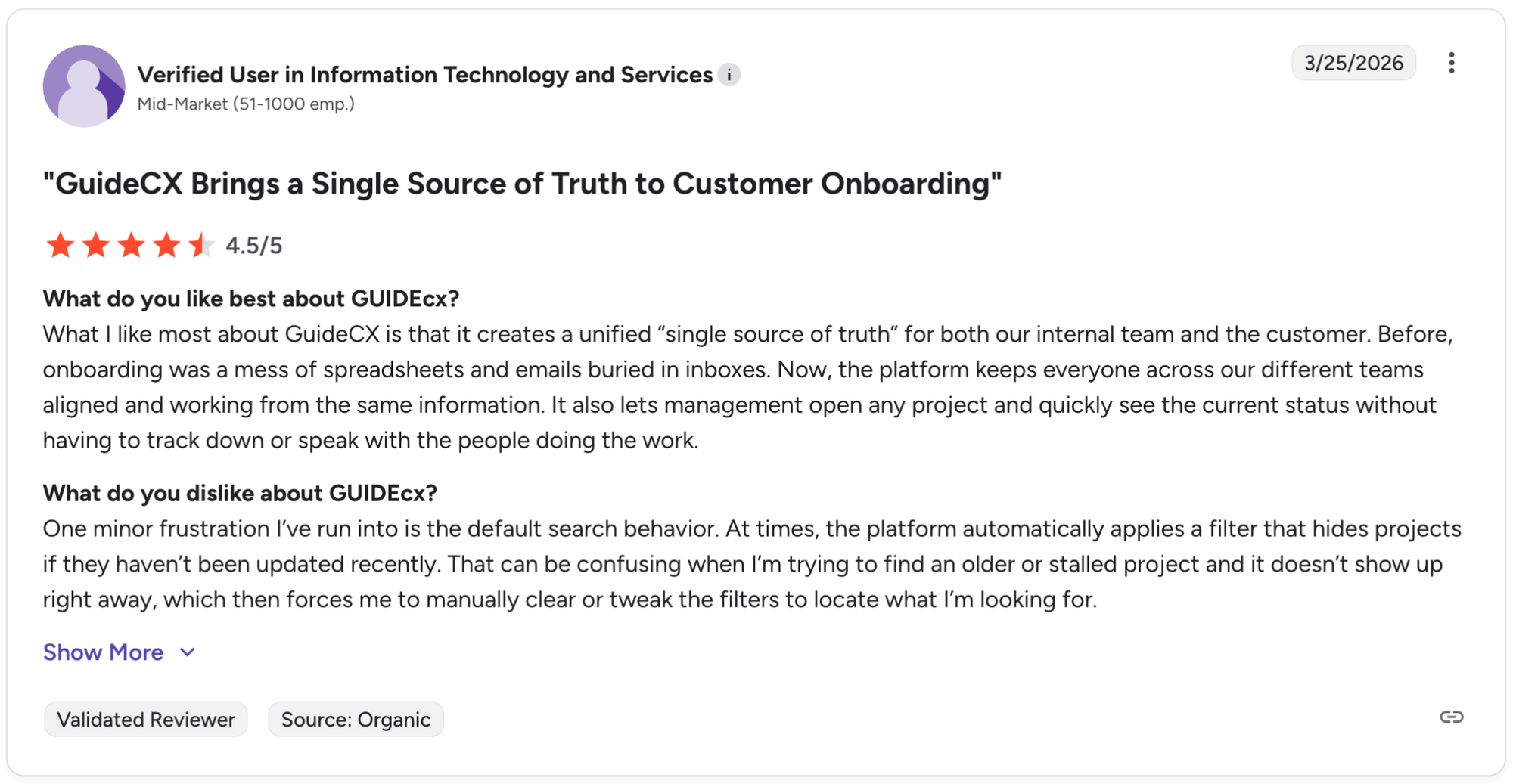
Pro: "What I like most about GuideCX is that it creates a unified 'single source of truth' for both our internal team and the customer. Before, onboarding was a mess of spreadsheets and emails buried in inboxes. Now, the platform keeps everyone across our different teams aligned and working from the same information." - Verified User in Information Technology and Services, G2
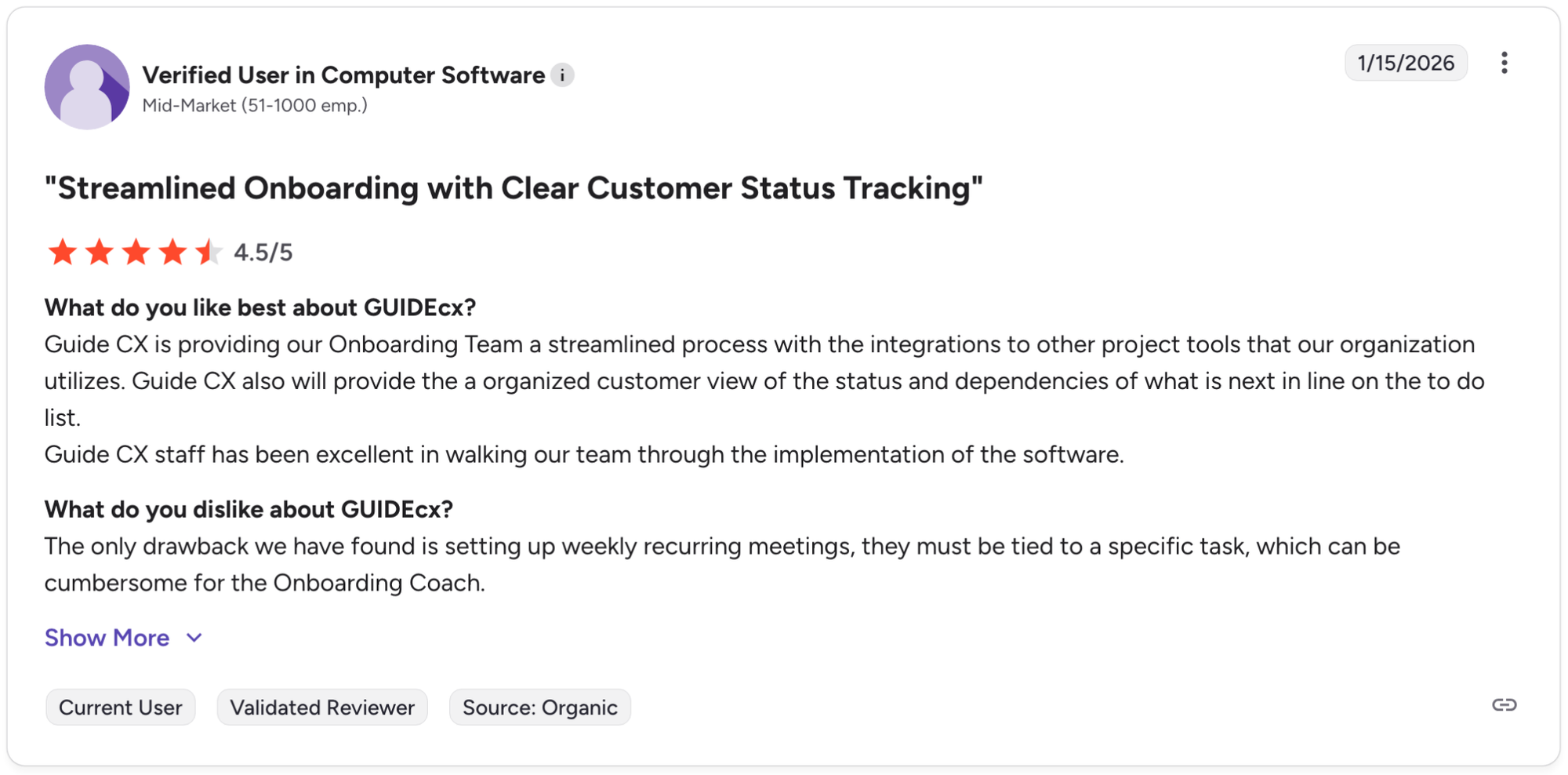
Con: "The only drawback we have found is setting up weekly recurring meetings, they must be tied to a specific task, which can be cumbersome for the Onboarding Coach." - Verified User in Computer Software, G2
Pricing
GUIDEcx offers custom pricing.
Bottom line
GUIDEcx's value comes from giving each stakeholder the right level of detail without making everyone use the same view of the project. If you need professional services features like resource planning and utilization tracking alongside onboarding, Rocketlane might be a better fit.
4. Assembly: Best for branded client portals from onboarding through ongoing client management
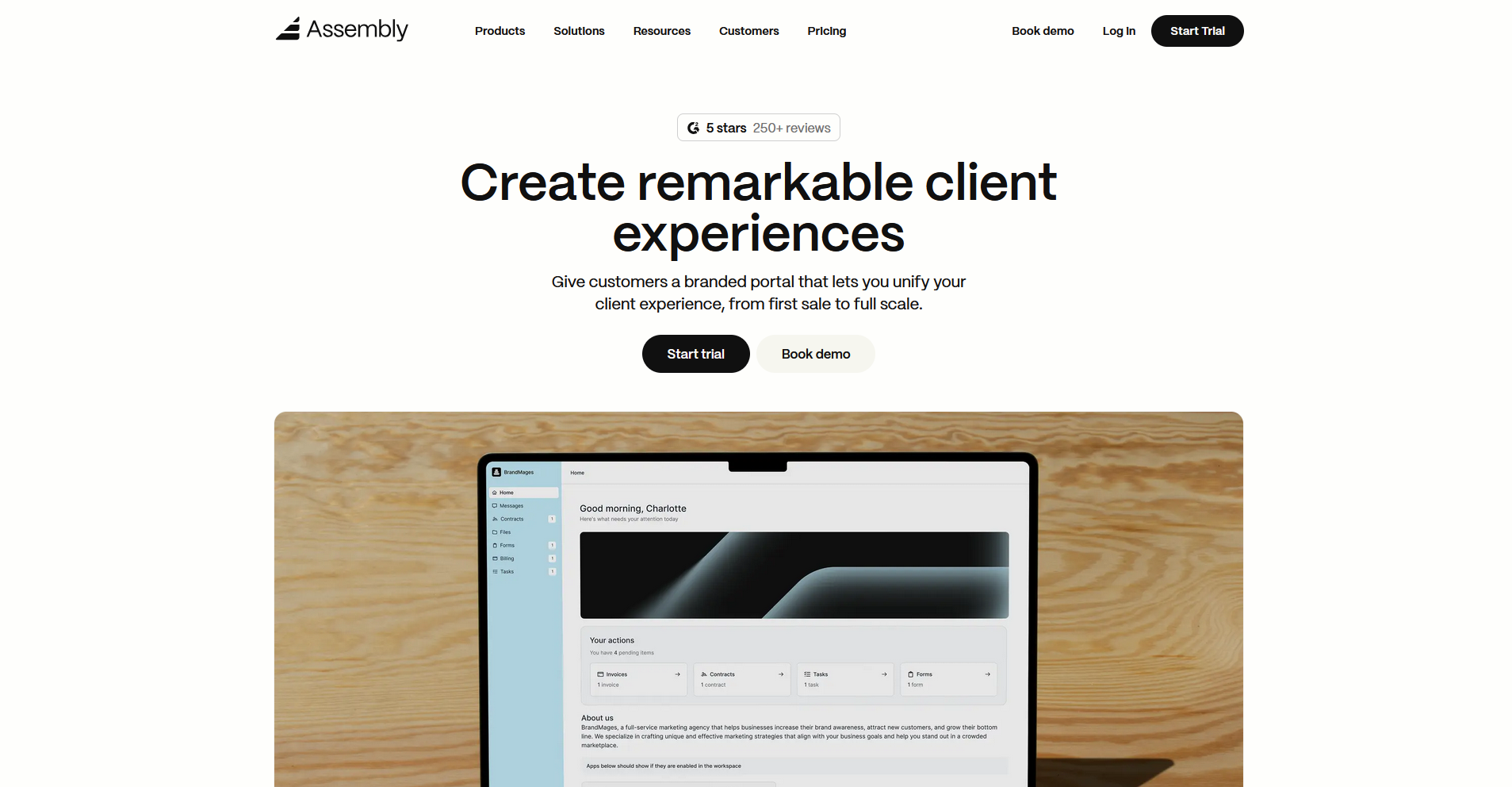
- What it does: Assembly is a client portal platform with a CRM core that lets service businesses build branded portals for onboarding, project delivery, and ongoing client management.
- Best for: Service businesses that want clients to log into a branded, customized portal from day one of onboarding and continue using it throughout the relationship.
We built Assembly to keep onboarding and ongoing client management in the same branded space. You can set up automated sequences to send welcome messages, forms, contracts, and invoices when a client accepts their invite. It's a client portal platform rather than a dedicated onboarding tool, so teams that need deep implementation tracking may find other tools on this list a better fit.
Key features
- Dynamic client homepages: Each client sees a customized homepage based on custom field tags, so their portal reflects their specific setup without manual changes.
- Recurring automations: Build trigger-based workflows that send messages, assign tasks, and update client records based on milestones or time intervals throughout the relationship.
- Tasks linked to client records: Associate tasks with specific clients, track their status alongside communication history and custom fields, and choose what to share with the client versus keep internal.
Pros and cons
| Pros | Cons |
|---|---|
| Onboarding and ongoing client management live in the same branded portal | Less support for structured onboarding phases and milestone dependencies than dedicated onboarding tools |
| Clients can access tasks, files, and messages without switching between tools | Built for service businesses, so it may not suit complex B2B SaaS implementations |
| Communication history, tasks, and files stay tied to each client record |
What users say
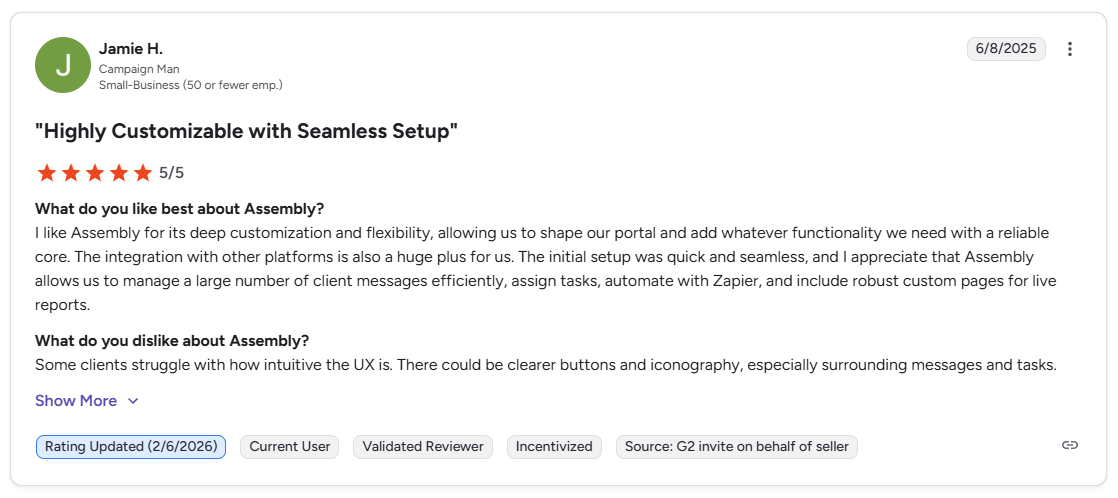
Pro: “I like Assembly for its deep customization and flexibility, allowing us to shape our portal and add whatever functionality we need with a reliable core. … Assembly allows us to manage a large number of client messages efficiently, assign tasks, automate with Zapier, and include robust custom pages for live reports.” - Jamie H., G2
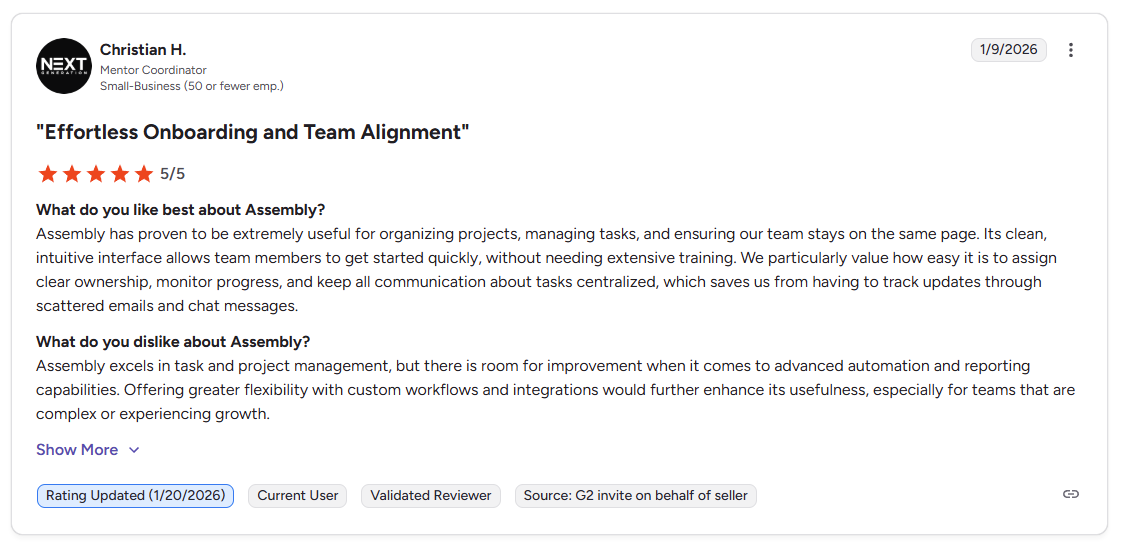
Con: “Assembly excels in task and project management, but there is room for improvement when it comes to advanced automation and reporting capabilities. Offering greater flexibility with custom workflows and integrations would further enhance its usefulness, especially for teams that are complex or experiencing growth.” - Christian H., G2
Pricing
Assembly has a free plan, and paid plans start at $29 per month billed annually.
Bottom line
Assembly's onboarding flows connect directly to the ongoing client portal, so the same branded space continues to work for project delivery and account management after implementation. If you need structured multi-stakeholder visibility with role-based views, GUIDEcx might be a better fit.
5. Dock: Best for sales through customer success lifecycle
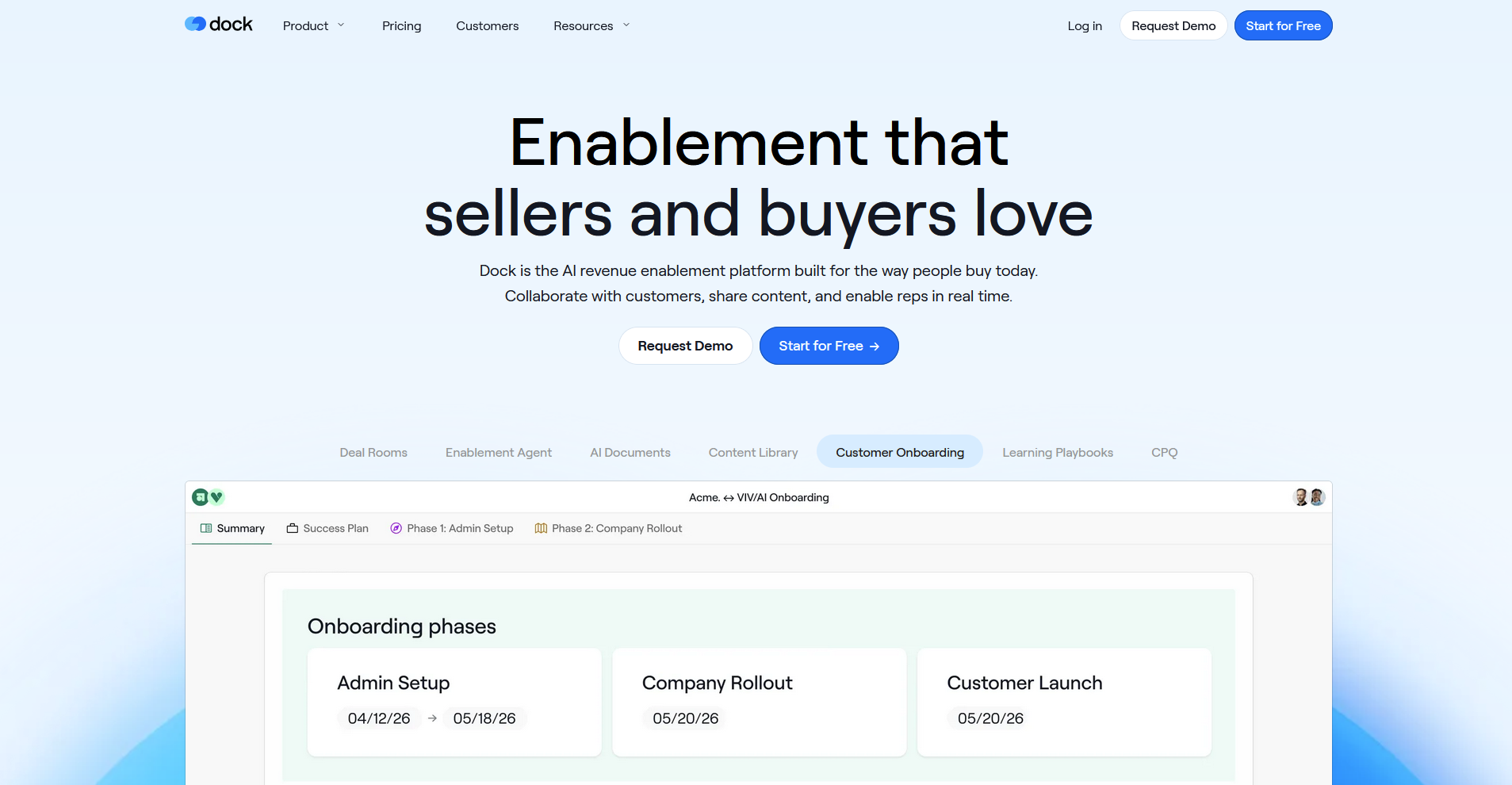
- What it does: Dock is a revenue enablement platform with connected workspaces, AI document generation, and content management that covers sales rooms, onboarding, and customer success.
- Best for: Revenue teams that want one platform for digital sales rooms, customer onboarding, and ongoing client portals instead of switching between separate tools at each stage.
I connected a sample workspace to test how Dock handles the transition from sales to onboarding. Rather than recreating context at each handoff, sales collateral and implementation plans stay in the same client workspace throughout. The platform is built for the full customer lifecycle from initial proposal to ongoing management, so teams that only run onboarding might not use all the features.
Key features
- Connected workspaces: Create shared spaces for clients that transition from sales proposals to onboarding plans to ongoing collaboration without switching platforms.
- AI document generation: Generate personalized onboarding materials, mutual action plans, and status updates using AI based on client data and templates.
- Learning playbooks: Build resource libraries with training videos, documentation, and guides that clients can access during and after onboarding.
Pros and cons
| Pros | Cons |
|---|---|
| One workspace spans sales, onboarding, and customer success without data handoffs | Built for the full revenue lifecycle, so onboarding-only teams may not need all features |
| AI helps generate personalized documents and client-facing materials faster | Switching between client projects requires closing one workspace and opening another |
| Content management keeps sales, onboarding, and ongoing resources organized |
What users say
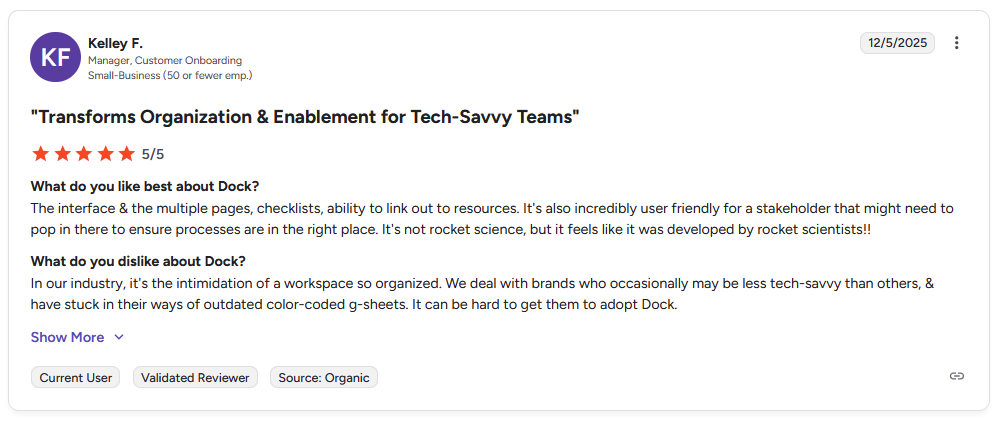
Pro: “The interface and the multiple pages, checklists, ability to link out to resources. It's also incredibly user-friendly for a stakeholder that might need to pop in there to ensure processes are in the right place. It's not rocket science, but it feels like it was developed by rocket scientists!!” - Kelley F., G2
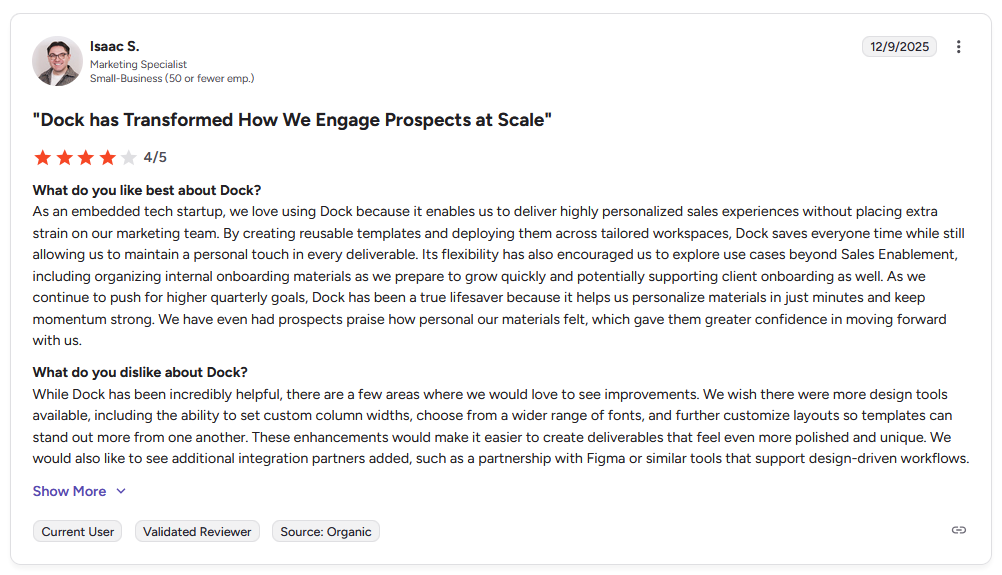
Con: "While Dock has been incredibly helpful, there are a few areas where we would love to see improvements. We wish there were more design tools available, including the ability to set custom column widths, choose from a wider range of fonts, and further customize layouts so templates can stand out more from one another. … We would also like to see additional integration partners added, such as a partnership with Figma or similar tools that support design-driven workflows." - Isaac S., G2
Pricing
Dock starts at $350 per month, billed monthly.
Bottom line
Dock works when you want one platform that handles sales rooms, onboarding, and customer success instead of separate tools for each stage. If you need a platform focused specifically on complex implementation management without the sales room features, OnRamp might be a better fit.
Special mentions
The tools below range from niche HubSpot integrations to full customer success platforms with onboarding features.
Here are 8 more client onboarding portal tools worth considering:
- Arrows: Arrows is a customer onboarding platform with deep CRM integration for HubSpot and Salesforce. I tested it with deal-based workflows and found it can reduce manual data entry between systems. The automation triggers for alerting teams when customers stall on tasks are limited, so you may need to manually check in more often.
- Moxo: Moxo is a workflow orchestration platform with client portals, AI agents, and approval routing. It's built for compliance-heavy industries that need audit trails and structured processes. The security features are strong and the workflow builder handles multi-step approval chains well, but the learning curve is steeper than simpler portal tools like Assembly.
- ChurnZero: ChurnZero is a customer success (CS) platform with onboarding automation built in. I tested the health scoring for spotting at-risk implementations and found it useful for tracking engagement signals early. The downside is it's priced as a full CS platform, so it makes more sense if you need the retention and expansion features beyond just onboarding.
- Planhat: Planhat is a customer platform that combines onboarding with product usage analytics and revenue tracking. The usage data helps you see which features clients adopt during implementation so you can adjust training. It includes revenue forecasting and expansion modules, so it may be more than you need if you're only looking for an implementation portal.
- Totango: Totango is a customer success platform with templated onboarding playbooks and segmentation. I tested running different onboarding tracks for small vs. enterprise clients and found the conditional logic easy to set up. It's also a full CS platform, so it may be more than you need if you're only focused on implementation.
- Vitally: Vitally is a CS platform built for data-driven teams that syncs customer data in real time. I found the dashboard views helpful for tracking onboarding alongside product usage. The analytics are the main draw, so teams that don't need deep reporting might not use the platform fully.
- Baton: Baton is an implementation management platform focused on coordinating across internal teams, clients, and external vendors. I tested it for implementations with 3rd-party integrators and found the stakeholder visibility helpful for tracking responsibilities. It works best when you need coordination across multiple external parties, not just between your team and the client.
- Client Success: Client Success is a mid-market customer success platform with onboarding templates and task automation. The templates make it easy to build standard onboarding sequences that repeat for each new client. It's designed for teams managing the full customer lifecycle, so it may be more than you need if you only want an implementation portal.
How I tested and researched these client onboarding portal tools
I tested these platforms by creating sample onboarding workflows, uploading mock documents, and tracking how tasks move between internal teams and mock client accounts. For tools without direct access, I reviewed demos, documentation, and verified user reviews to understand how they handle implementations.
Here's what I evaluated:
- Customer portal experience: How clean and usable the client-facing view is without training or setup instructions.
- Task coordination: Whether dependencies, reminders, and status tracking reduce manual follow-up work.
- Document handling: How easy it is to request files, track versions, and keep everything organized in one place.
- Template flexibility: Whether you can reuse workflows without rebuilding from scratch each time.
- Integration depth: How well each platform syncs with CRMs and communication tools your team already uses.
Final verdict
OnRamp, Rocketlane, and GUIDEcx handle complex B2B implementations well when your main goal is moving clients through structured onboarding with clear milestones and task tracking. Dock works if you want one platform that spans sales rooms through customer success. The full CS platforms like ChurnZero and Planhat make sense if you need onboarding plus retention features.
Assembly is built as a client portal platform with a CRM core, not an onboarding tool with add-ons. It's designed for service businesses that need a branded client hub for the full relationship.
Here’s how Assembly helps:
- Give clients a branded portal: Clients log into a space that reflects your brand to access contracts, invoices, files, and project updates without email back-and-forth.
- Dynamic client homepages: Different clients automatically see different content based on custom field tags, so each client's portal reflects their specific reporting setup without manual changes.
- Keep tasks, messages, and files together: Client communication, shared files, and project tasks stay connected to each client record instead of being scattered across separate tools.
- Prep faster for meetings: The Assembly AI Assistant summarizes recent client activity and communication, helping you walk into calls with a clear picture of what’s been discussed and what’s outstanding.
- Built-in client management: Track client relationships, communication history, and project status in one place so nothing gets lost between reporting cycles.
Assembly is built for service businesses that need client onboarding, project delivery, and ongoing reporting in one branded portal. If you want a space that works beyond the implementation phase, instead of just getting clients live, it's worth a look. Start your free Assembly trial today.