



AI workflow automation tools connect your apps, process data, and handle repetitive tasks so your team can spend less time on manual work. I tested dozens to find the 11 that hold up for business teams in 2026.
11 best AI workflow automation tools: quick comparison
| Tool | Best for | Starting price | Strengths |
|---|---|---|---|
| Zapier | Non-technical teams connecting apps | $19.99/month (Unlimited Zap workflows) | Thousands of integrations, beginner-friendly UI, and AI agents |
| Make | Visual, multi-step workflow building | $12/month (10K monthly credits) | Visual canvas, data transformation, and conditional logic |
| n8n | Developer-level workflow control | $20/month (2.5K workflow executions) | Self-hosting, custom code nodes, and source-available licensing |
| Gumloop | No-code AI workflow building | $37/month (20K monthly credits) | Built-in LLM models, visual builder, and MCP support |
| Microsoft Power Automate | Teams in the Microsoft 365 ecosystem | $15/user/month | Native Microsoft integration, RPA capabilities, and broad connector library |
| Lindy AI | Conversational, natural language automation | $29.99/month, billed monthly | Thousands of integrations, AI voice, and natural language setup |
| Workato | Enterprise-grade automation governance | Custom pricing | RBAC, audit logging, and enterprise security controls |
| Relay.app | Human-in-the-loop workflows | $19/month (750 steps/month) | Approval steps, collaborative workflows, and no-code setup |
| Pipedream | Developer-built API integrations | $29/month (2K credits) | Custom code steps, event-driven triggers, and API flexibility |
| UiPath | Robotic process automation | Custom pricing | RPA capabilities, enterprise compliance, and desktop automation |
| ClickUp | Project-based task automation | $7/user/month | Task automation, built-in project management, and AI writing tools |
Billed annually
If you plan to build these workflows for clients instead of your own team, my guide to starting an AI automation agency covers the services you can offer, with examples.
How I researched and tested these AI workflow automation tools
To evaluate each platform, I built and ran sample workflows using mock business data, covering common use cases like data routing, app-to-app triggers, and multi-step automations. For tools without direct access, I worked through official documentation, product walkthroughs, and demos.
Here's what I considered:
- Workflow building experience: How quickly and intuitively you can go from a blank canvas to a working automation, without needing a developer to step in.
- AI capabilities: Whether the AI features in each tool go beyond basic suggestions and actually do meaningful work inside a workflow.
- Integration depth: How well each tool connects to the apps business teams rely on, and whether those connections hold up when workflows get more complex.
- Pricing transparency: What you actually get at each tier, and whether the cost stays reasonable as your usage grows.
- Fit for different skill levels: How each tool performs for non-technical users versus developers, and where the gaps start to show.
The tools that stood out weren't always the ones with the longest feature lists. They were the ones where a non-technical user could build a working automation without switching tabs to troubleshoot every other step.
1. Zapier: Best for non-technical teams connecting apps
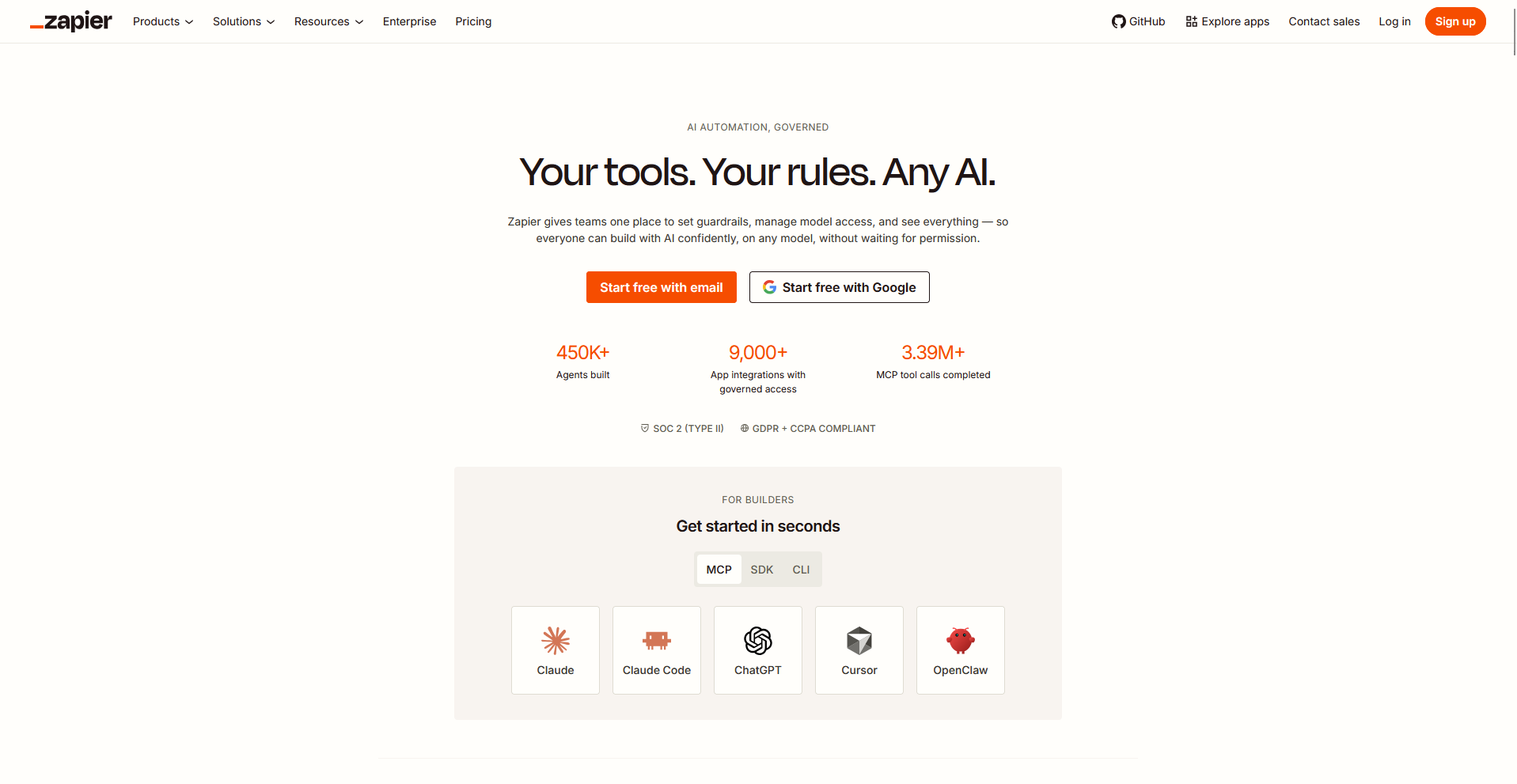
- What it does: Zapier is a workflow automation platform that connects apps so actions in one tool can trigger tasks in another without manual input.
- Best for: Non-technical teams connecting apps.
I set up a sample workflow in Zapier (connecting a Google Sheets update to a Slack notification) to see how quickly someone without a technical background could get a multi-step automation running. It took under 20 minutes to build and run successfully, with no code involved at any point. If you're running that same workflow at a higher task volume, keep an eye on cost since it climbs with usage.
Key features
- Zaps: Automated workflows that connect a trigger in one app to one or more actions in another.
- AI agents: Built-in AI steps that can read, summarize, or generate content within a workflow.
- App directory: A library of thousands of pre-built app connections you can add to a workflow without custom setup.
Pros and cons
| Pros | Cons |
|---|---|
| Wide app directory makes it easy to connect tools without custom integration work | Costs can climb quickly once your task volume grows past the basics |
| Beginner-friendly setup gets non-technical users building workflows fast | Complex, multi-step workflows can get harder to manage as they scale |
| AI agent steps can handle tasks like summarizing or drafting without extra tools |
What users say
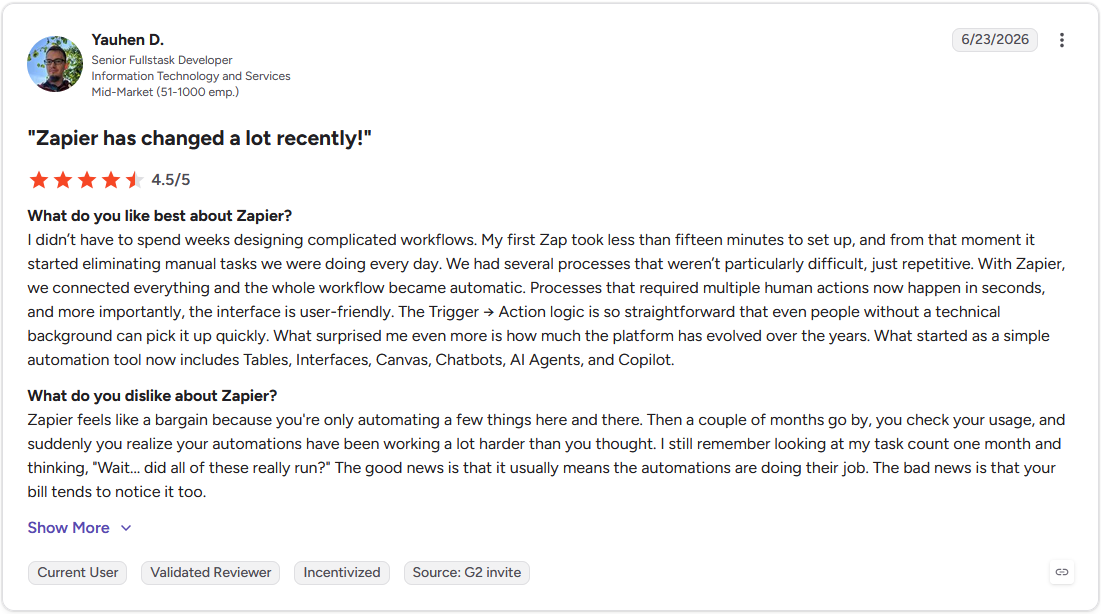
Pro: "My first Zap took less than fifteen minutes to set up, and from that moment it started eliminating manual tasks we were doing every day. … The Trigger → Action logic is so straightforward that even people without a technical background can pick it up quickly." - Yauhen D., G2
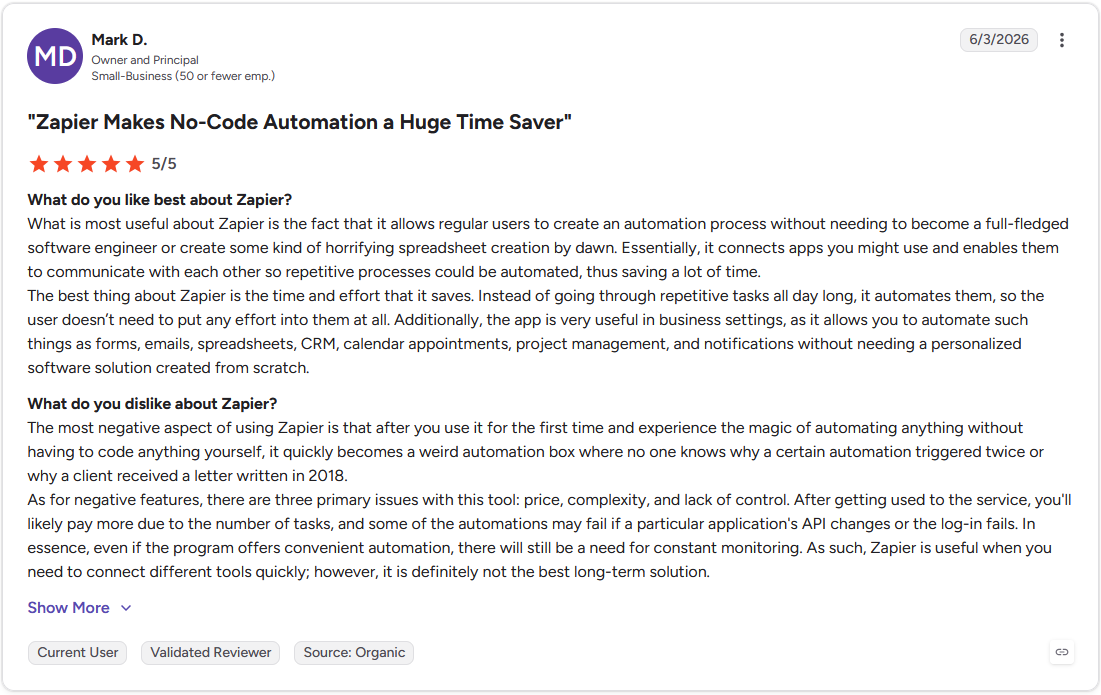
Con: "As for negative features, there are three primary issues with this tool: price, complexity, and lack of control. After getting used to the service, you'll likely pay more due to the number of tasks, and some of the automations may fail if a particular application's API changes or the log-in fails." - Mark D., G2
Pricing
Zapier starts at $19.99 per month for unlimited Zap workflows.
Bottom line
Zapier's value comes from how many apps it connects out of the box, not from handling deep, code-level logic within a workflow. Teams that need more control over complex branching and conditional logic may find Make a stronger match.
2. Make: Best for visual, multi-step workflow building
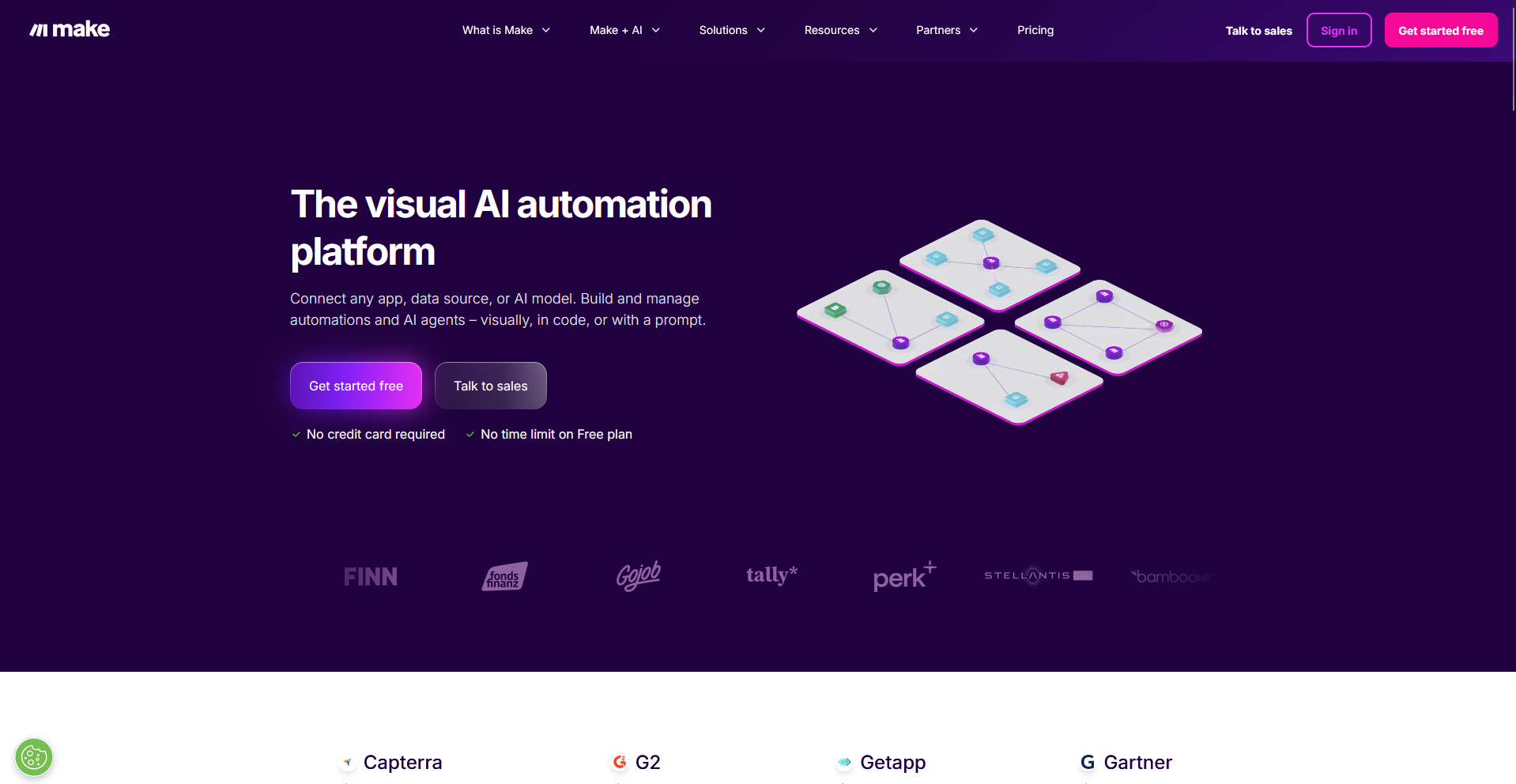
- What it does: Make is a workflow automation platform that lets you build and view multi-step automations on a visual canvas.
- Best for: Visual, multi-step workflow building.
Make offers a visual canvas for multi-step workflows, and I wanted to test it by building a scenario with branching logic instead of a simple linear path. Each module appeared as a connected node, so I could catch a misconfigured step before running it live. Mapping a scenario across several apps takes more upfront time here than it would in a simpler, more linear tool.
Key features
- Visual scenario builder: A drag-and-drop canvas where each step in a workflow appears as a connected module.
- Data transformation tools: Built-in functions for reshaping, filtering, and mapping data between steps without custom code.
- Conditional routing: Logic that sends data down different paths in a workflow based on rules you set.
Pros and cons
| Pros | Cons |
|---|---|
| Visual canvas makes it easy to trace logic across a complex, multi-step scenario | Advanced features like error handling and iterators carry a steeper learning curve |
| Built-in data transformation reduces the need for custom code between steps | Execution logs can be difficult to parse when a scenario breaks |
| Conditional routing supports more sophisticated branching than simpler linear tools |
What users say
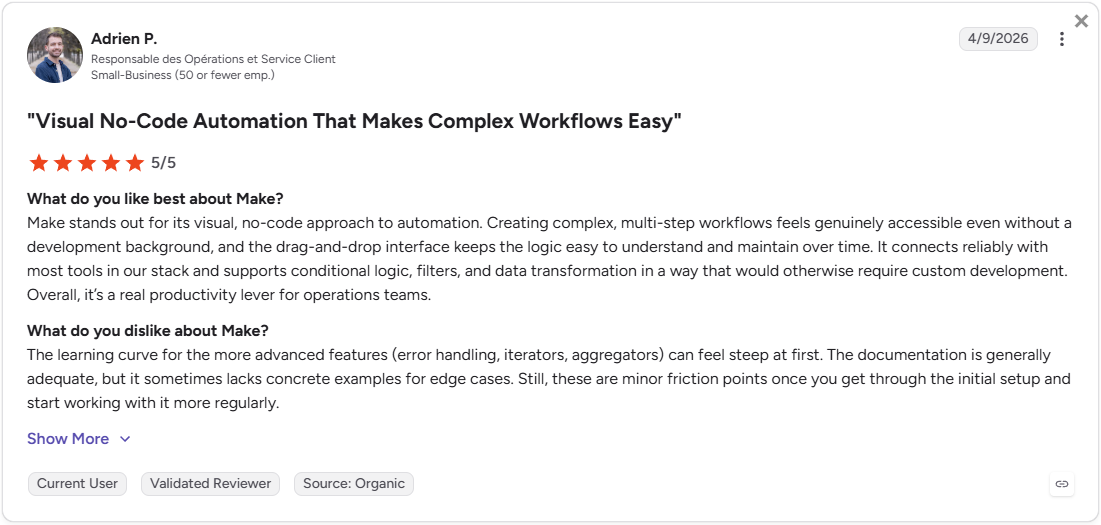
Pro: "Creating complex, multi-step workflows [feels] genuinely accessible even without a development background, and the drag-and-drop interface keeps the logic easy to understand and maintain over time." - Adrien P., G2
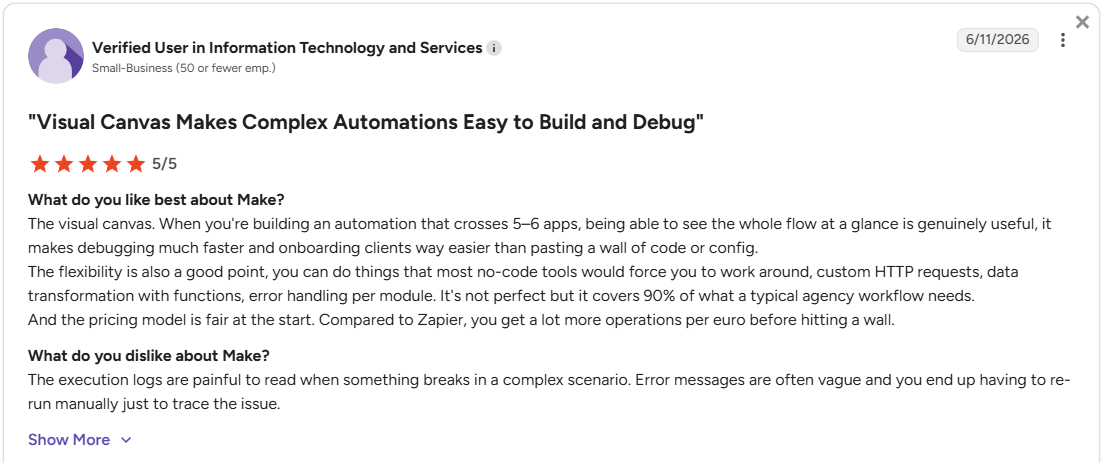
Con: "The execution logs are painful to read when something breaks in a complex scenario. Error messages are often vague and you end up having to re-run manually just to trace the issue." - Verified User in Information Technology and Services, G2
Pricing
Make starts at $12 per month for 10,000 monthly credits.
Bottom line
Make lets you see your entire workflow on one visual canvas as it grows more complex. If you're newer to automation and want a gentler learning curve, Zapier could be worth a look.
3. n8n: Best for developer-level workflow control
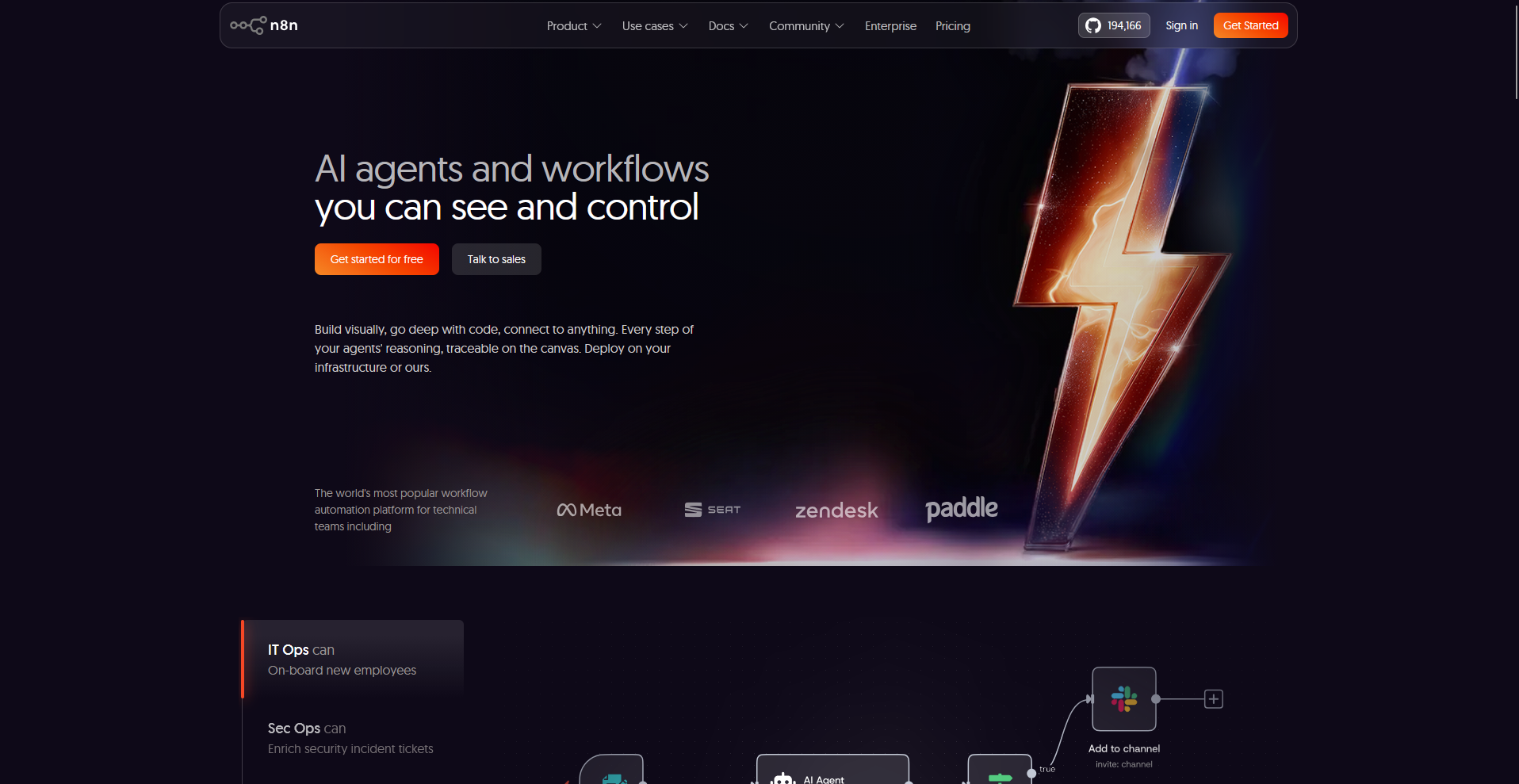
- What it does: n8n is a workflow automation platform that gives developers node-based building with the option to self-host and add custom code.
- Best for: Developer-level workflow control.
I wanted to test how far n8n's code flexibility goes, so I added a custom JavaScript step into a workflow instead of relying only on built-in nodes. It ran alongside the standard nodes without breaking the workflow and let me transform data the pre-built options didn't support. That logic depends on knowing how to code, so teams without a developer may be limited to the built-in nodes.
Key features
- Custom code nodes: Add JavaScript or Python directly into a workflow step for logic that built-in nodes don't cover.
- Self-hosting: Run n8n on your own infrastructure instead of relying on a hosted cloud plan.
- Source-available licensing: Access the platform's source code under a fair-code license.
Pros and cons
| Pros | Cons |
|---|---|
| Custom code steps give developers control that most no-code tools don't offer | Non-developers face a steeper learning curve than on simpler platforms |
| Self-hosting supports teams with strict data privacy or compliance needs | Self-hosted setups require ongoing server maintenance and updates |
| Source-available licensing gives visibility into how the platform works under the hood |
What users say
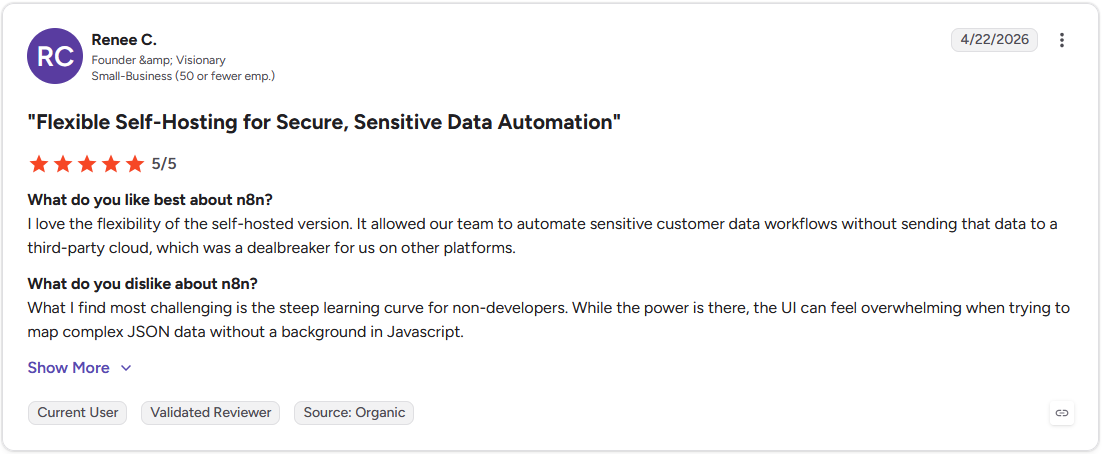
Pro: "It allowed our team to automate sensitive customer data workflows without sending that data to a third-party cloud, which was a dealbreaker for us on other platforms." - Renee C., G2
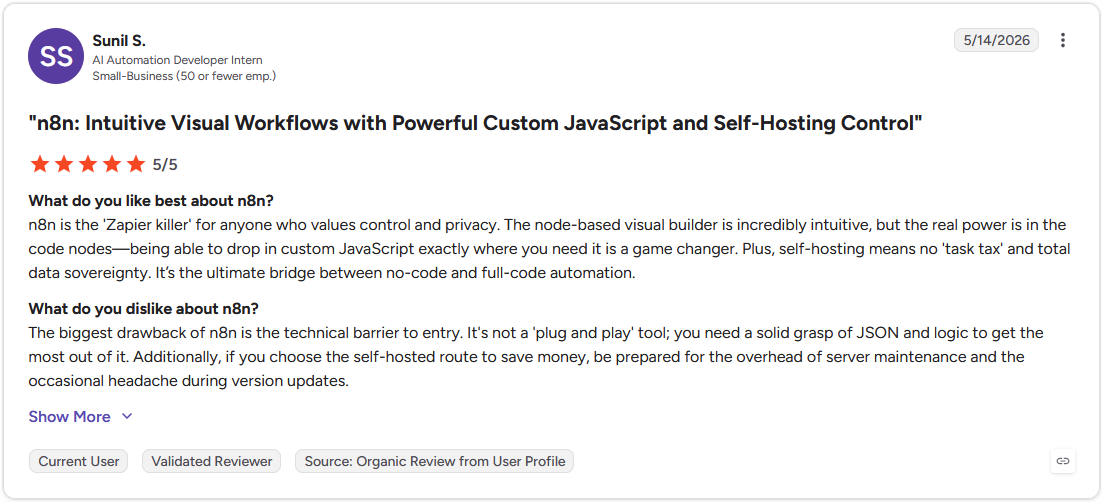
Con: "The biggest drawback of n8n is the technical barrier to entry. It's not a 'plug and play' tool; you need a solid grasp of JSON and logic to get the most out of it. … if you choose the self-hosted route to save money, be prepared for the overhead of server maintenance and the occasional headache during version updates." - Sunil S., G2
Pricing
n8n starts at $20 per month for 2,500 workflow executions.
Bottom line
n8n hands developers control over workflow logic through custom code and self-hosting. If you want a no-code option that's still built around AI, Gumloop could be worth considering.
4. Gumloop: Best for no-code AI workflow building
- What it does: Gumloop is a workflow automation platform with built-in AI models and a visual canvas for building automations without code.
- Best for: No-code AI workflow building.
Gumloop's built-in AI models drew my attention first, so I built a workflow that used one directly in a step without connecting a separate API key. The step ran the task and passed the output into the next node without any extra setup. That saved a setup step other tools often require, but fewer templates means you’ll have to build more specific workflows from scratch.
Key features
- Built-in AI models: Access to LLM models inside a workflow step without connecting your own API key.
- Visual canvas: A drag-and-drop builder for connecting steps, apps, and AI actions into a workflow.
- MCP support: A hosted MCP server that connects Gumloop workflows to external tools and data sources.
Pros and cons
| Pros | Cons |
|---|---|
| Built-in AI models remove the need to manage your own API keys | Template library is smaller than some more established platforms |
| Visual canvas keeps workflow logic easy to follow as it grows | Support responsiveness can vary given the size of the team |
| MCP support connects workflows to a wider range of external tools |
What users say
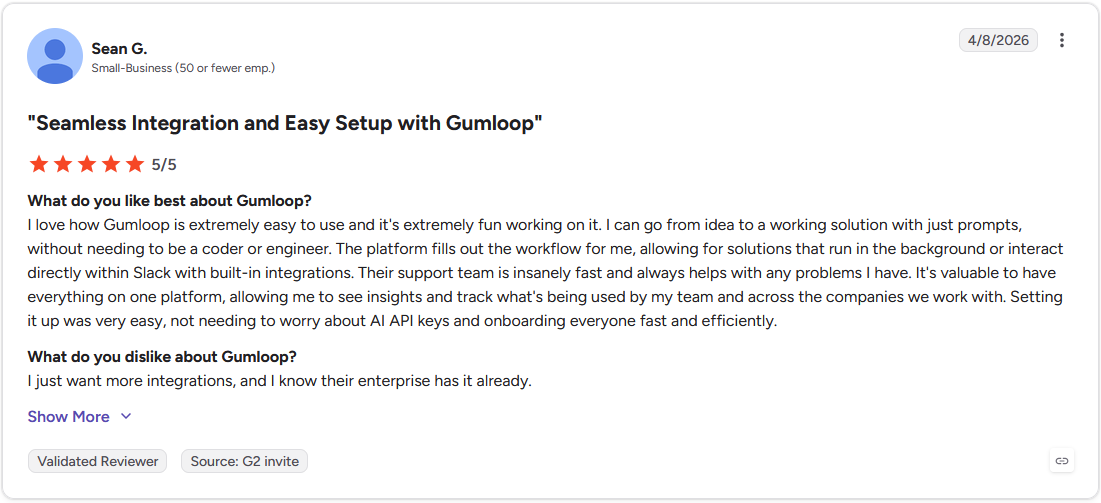
Pro: "I can go from idea to a working solution with just prompts, without needing to be a coder or engineer. The platform fills out the workflow for me, allowing for solutions that run in the background or interact directly within Slack with built-in integrations." - Sean G., G2
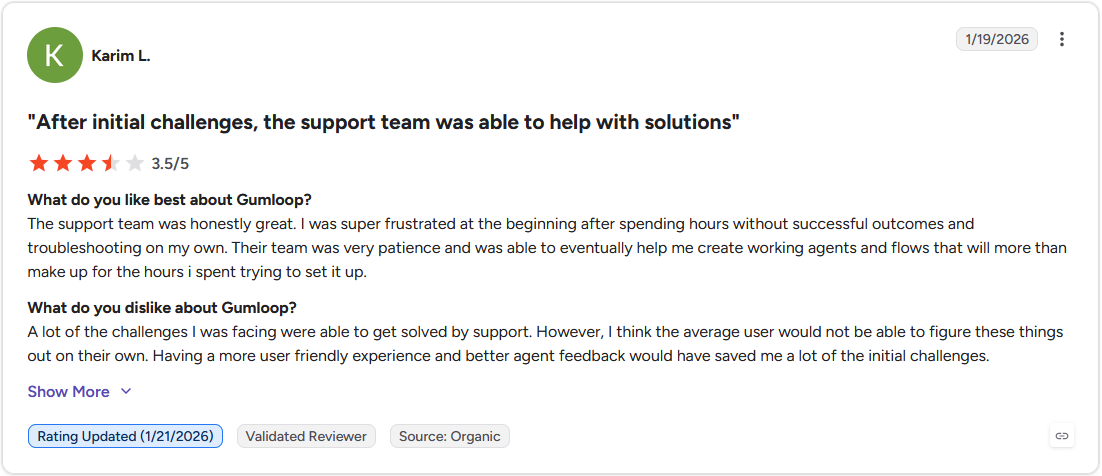
Con: "I think the average user would not be able to figure these things out on their own. Having a more user[‑]friendly experience and better agent feedback would have saved me a lot of the initial challenges." - Karim L., G2
Pricing
Gumloop starts at $37 per month for 20,000 monthly credits.
Bottom line
Gumloop skips the API key setup and gets you building AI workflows without managing your own model access. If you want a tool built for teams already working inside Microsoft 365, Power Automate might be a better fit.
5. Microsoft Power Automate: Best for teams in the Microsoft 365 ecosystem
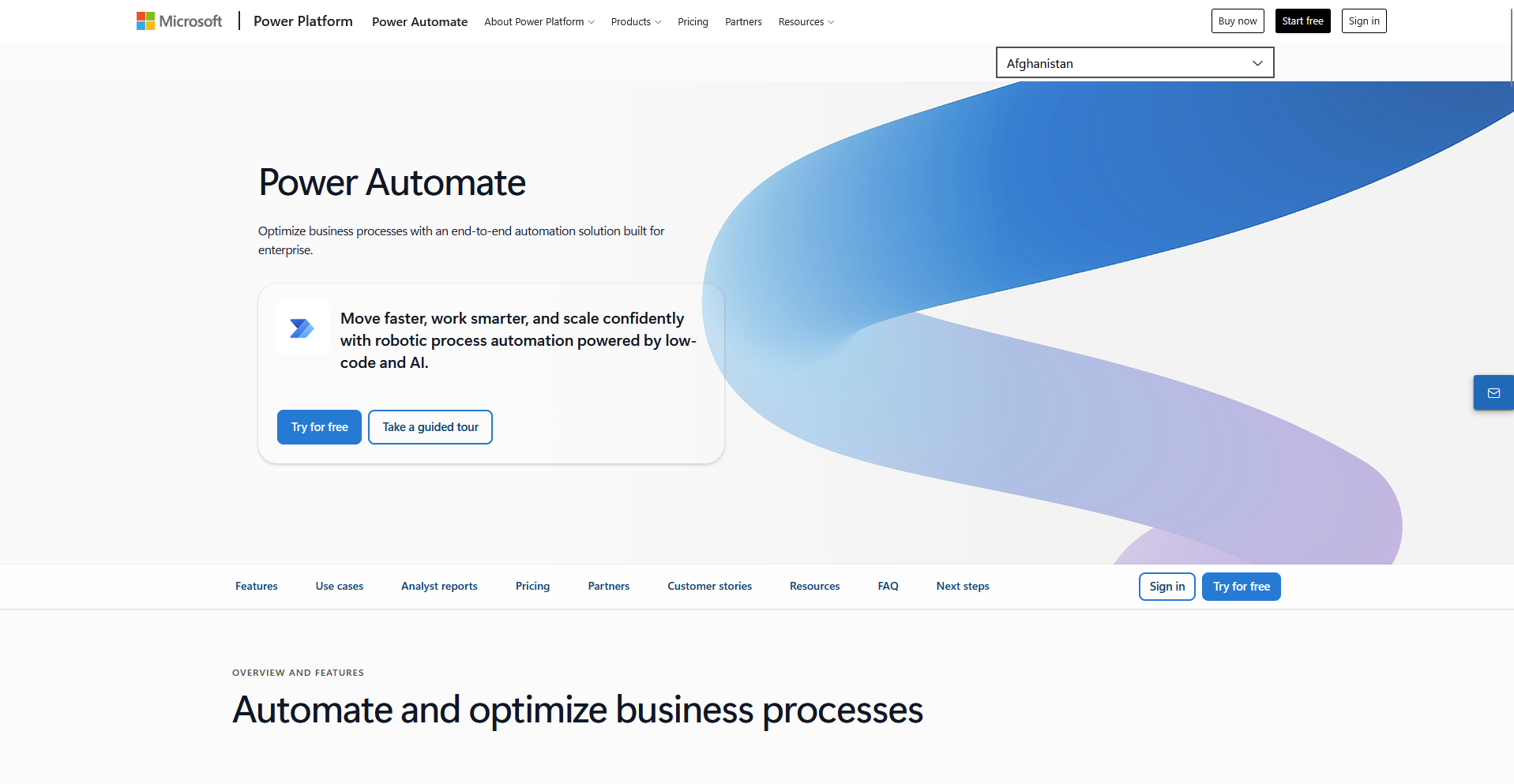
- What it does: Microsoft Power Automate is a workflow automation platform built to connect and automate processes across Microsoft 365 apps.
- Best for: Teams in the Microsoft 365 ecosystem.
I connected a workflow to SharePoint and Outlook to see how Power Automate handled tools a team already uses daily. The trigger picked up a new file in SharePoint and sent a notification through Outlook with no separate connector needed. Apps outside the Microsoft ecosystem take more setup, since the deepest functionality stays tied to Microsoft's own tools.
Key features
- Native Microsoft 365 integration: Built-in connections to apps like SharePoint, Teams, and Outlook without added setup.
- RPA capabilities: Robotic process automation that can interact with desktop applications and legacy systems.
- Prebuilt connector library: A catalog of connectors for both Microsoft and third-party apps.
Pros and cons
| Pros | Cons |
|---|---|
| Native integration with Microsoft 365 apps requires little extra setup | Deepest functionality stays tied to the Microsoft ecosystem |
| RPA capabilities extend automation to desktop and legacy systems | Connectors for non-Microsoft apps can be less consistent |
| Broad connector library covers a wide range of both Microsoft and third-party tools |
What users say
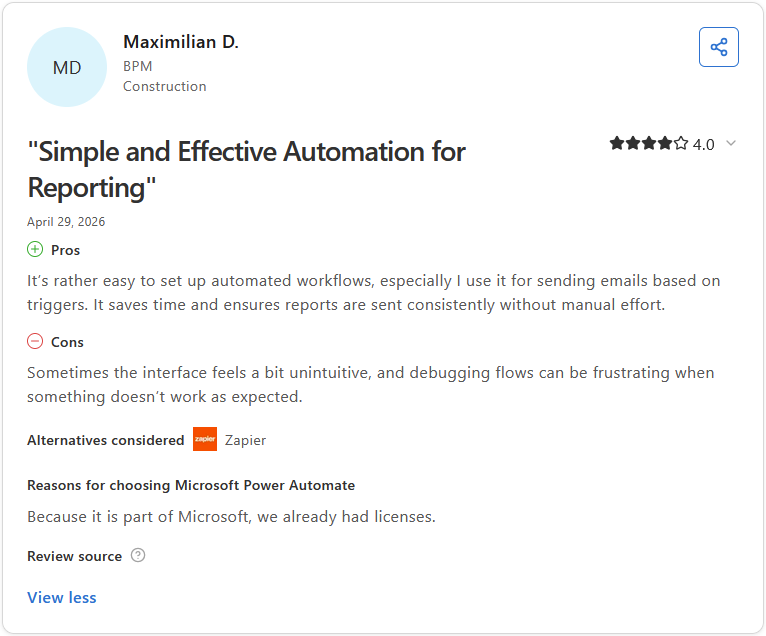
Pro: "It's rather easy to set up automated workflows, especially I use it for sending emails based on triggers. It saves time and ensures reports are sent consistently without manual effort." - Maximilian D., Capterra
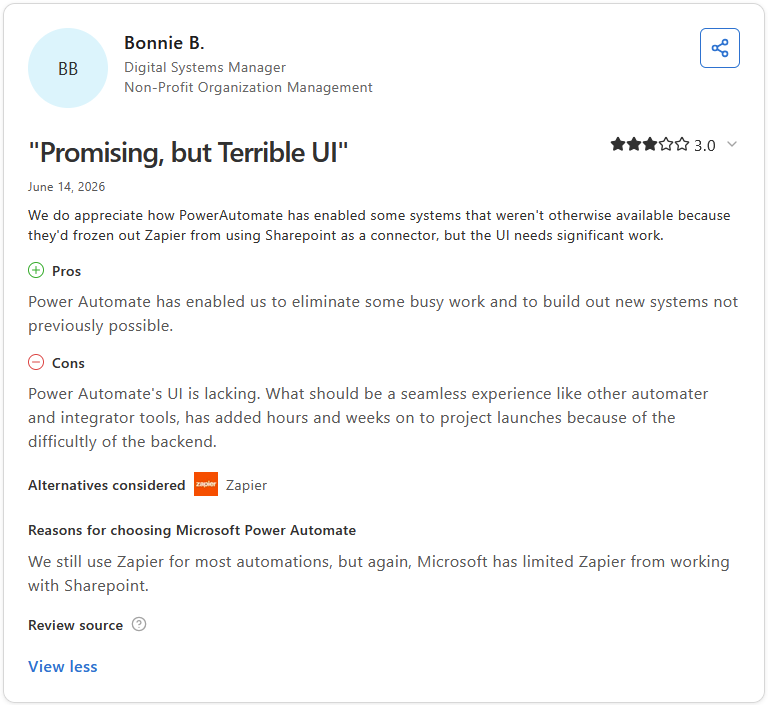
Con: "Power Automate's UI is lacking. What should be a seamless experience like other [automator] and integrator tools, has added hours and weeks on to project launches because of the [difficulty] of the backend." - Bonnie B., Capterra
Pricing
Microsoft Power Automate starts at $15 per user per month.
Bottom line
Power Automate's advantage is how deeply it ties into apps a Microsoft 365 team already uses every day. If you want more control over custom code and self-hosting outside that ecosystem, n8n might be a better fit.
Special mentions
These tools didn't make the full review list, but each one can be a strong fit depending on your team's technical background, existing stack, and how much human oversight your workflows need.
Here are 6 more AI workflow automation tools worth a look:
- Lindy AI: Lindy is an AI automation platform where you describe what you want a workflow to do in plain English, and it builds the logic for you instead of requiring you to map out every trigger and action manually. I found it faster to set up than most structured builders, though workflows with specific conditions can get imprecise, so it works best when the logic is relatively straightforward.
- Workato: Workato is an enterprise automation platform built around governance, with role-based access controls, audit logging, and cross-team workflow management baked in. It’s best suited to larger organizations where accountability over who can edit or trigger workflows matters, though the platform's depth and configuration overhead can be a barrier for smaller teams.
- Relay.app: Relay.app is a no-code automation tool built around human-in-the-loop steps, where team members can approve or review before the next step runs. It's valuable for client-facing processes where fully automated output carries real risk, though it's not the right fit for workflows that need to run completely hands-off.
- Pipedream: Pipedream is a developer-oriented automation platform built around event-driven triggers, with support for custom code steps in Node.js, Python, or Go at any point in a workflow. I found it particularly useful for connecting APIs that don't have native integrations available, but getting value out of it does assume a comfortable working knowledge of code.
- UiPath: UiPath is a robotic process automation platform built for situations where there's no API to connect to. It can interact directly with desktop applications, web interfaces, and legacy systems instead. I liked how it handled older software environments without needing an API in place, though if your stack runs entirely in the cloud, it may end up being more tool than you need.
- ClickUp AI: ClickUp AI weaves automation and AI writing tools directly into ClickUp's project management environment, so things like task creation, status updates, and recurring workflows can take care of themselves. It's handy if your team already uses ClickUp, but adopting the whole platform just for the automation layer is a tough sell otherwise.
Which AI workflow automation tool should you choose?
The right AI workflow automation tool depends on your team's technical comfort, how many apps you need to connect, and how much control you want over the logic behind each workflow.
Choose Zapier if you:
- Want a large connector library that covers most of the apps your team already uses
- Need a tool that's approachable for non-technical team members from day one
- Build simple, single-purpose automations more often than complex, multi-step ones
Choose Make if you:
- Need to see your entire workflow laid out visually as you build it
- Build multi-step automations with branching logic or conditional paths
- Want more control over data transformation without writing custom code
Choose n8n if you:
- Have a developer on your team who can take advantage of custom code steps
- Need to self-host for data privacy or compliance reasons
- Want full control over workflow logic without depending on a vendor's roadmap
Choose Gumloop if you:
- Want AI baked directly into your workflow logic, not just as an add-on step
- Prefer a visual builder that doesn't require managing your own AI model access
- Build workflows that lean heavily on AI-driven decisions, like content or lead scoring
Choose Microsoft Power Automate if you:
- Already work inside the Microsoft 365 ecosystem and want native integration
- Need a tool that fits into existing enterprise compliance and IT requirements
- Automate processes that touch tools like SharePoint, Teams, or Outlook regularly
Final verdict
Zapier, Make, n8n, Gumloop, and Microsoft Power Automate each take a different approach to moving data and triggering actions behind the scenes, from visual builders to developer-first customization to enterprise-grade governance.
But once those workflows run, your clients still need a branded, client-facing space to see the results. If that's the piece missing from your setup, Assembly gives you that branded client space, and its AI app builder builds the apps inside it from a prompt.
Here's how Assembly can help:
- Client-facing by default: Describe the app your clients need, and Assembly’s app builder builds it directly into your branded client space. Files, updates, and project progress land in one place instead of scattered across email threads.
- Build the tracking apps your clients need: Assembly’s app builder can build a project tracker or case status page tied to each client's account, giving the output of your automations a client-facing home.
- Protect client data: Assembly maintains SOC 2 Type II compliance and supports GDPR, CCPA, and HIPAA compliance.
Assembly may not be the right fit iif your clients never need direct visibility into the work. For service teams that want automated work to surface somewhere clients can actually see it, it's worth a closer look. Try Assembly for free.