Intro to apps
Custom Visibility for Apps
Messages App
Billing App
Services
Invoicing
Subscriptions
Payment Links
Store
Client Billing Experience
Fees & Payment Reconciliation
Files App
Contracts App
Forms App
Helpdesk App
Tasks App
Client Home App
Profile Manager App
Airtable Embed
Calendly Embed
Notion Embed
Google Sheets Embed
ClickUp Embed
Typeform Embed
Youtube Embed
Autoresponder App
Exporter App
QuickBooks Integration
Xero Integration
Other Embeds
Jotform Embed
Power BI Embed
Hubspot Forms Embed
Hubspot Meetings Embed
Miro Embed
Figma Embed
Monday Embed
Canva Embed
Acuity Scheduling Embed
Loom Embed
Google Drive Embed
Google Slides Embed
Google Docs Embed
Google Forms Embed
Looker Studio Embed
Google Calendar Embed
Databox Embed
Trello Embed
Zoom Scheduling Embed
Squarespace Embed
OneDrive Embed
Intro to apps
Custom Visibility for Apps
Messages App
Billing App
Services
Invoicing
Subscriptions
Payment Links
Store
Client Billing Experience
Fees & Payment Reconciliation
Files App
Contracts App
Forms App
Helpdesk App
Tasks App
Client Home App
Profile Manager App
Airtable Embed
Calendly Embed
Notion Embed
Google Sheets Embed
ClickUp Embed
Typeform Embed
Youtube Embed
Autoresponder App
Exporter App
QuickBooks Integration
Xero Integration
Other Embeds
Jotform Embed
Power BI Embed
Hubspot Forms Embed
Hubspot Meetings Embed
Miro Embed
Figma Embed
Monday Embed
Canva Embed
Acuity Scheduling Embed
Loom Embed
Google Drive Embed
Google Slides Embed
Google Docs Embed
Google Forms Embed
Looker Studio Embed
Google Calendar Embed
Databox Embed
Trello Embed
Zoom Scheduling Embed
Squarespace Embed
OneDrive Embed

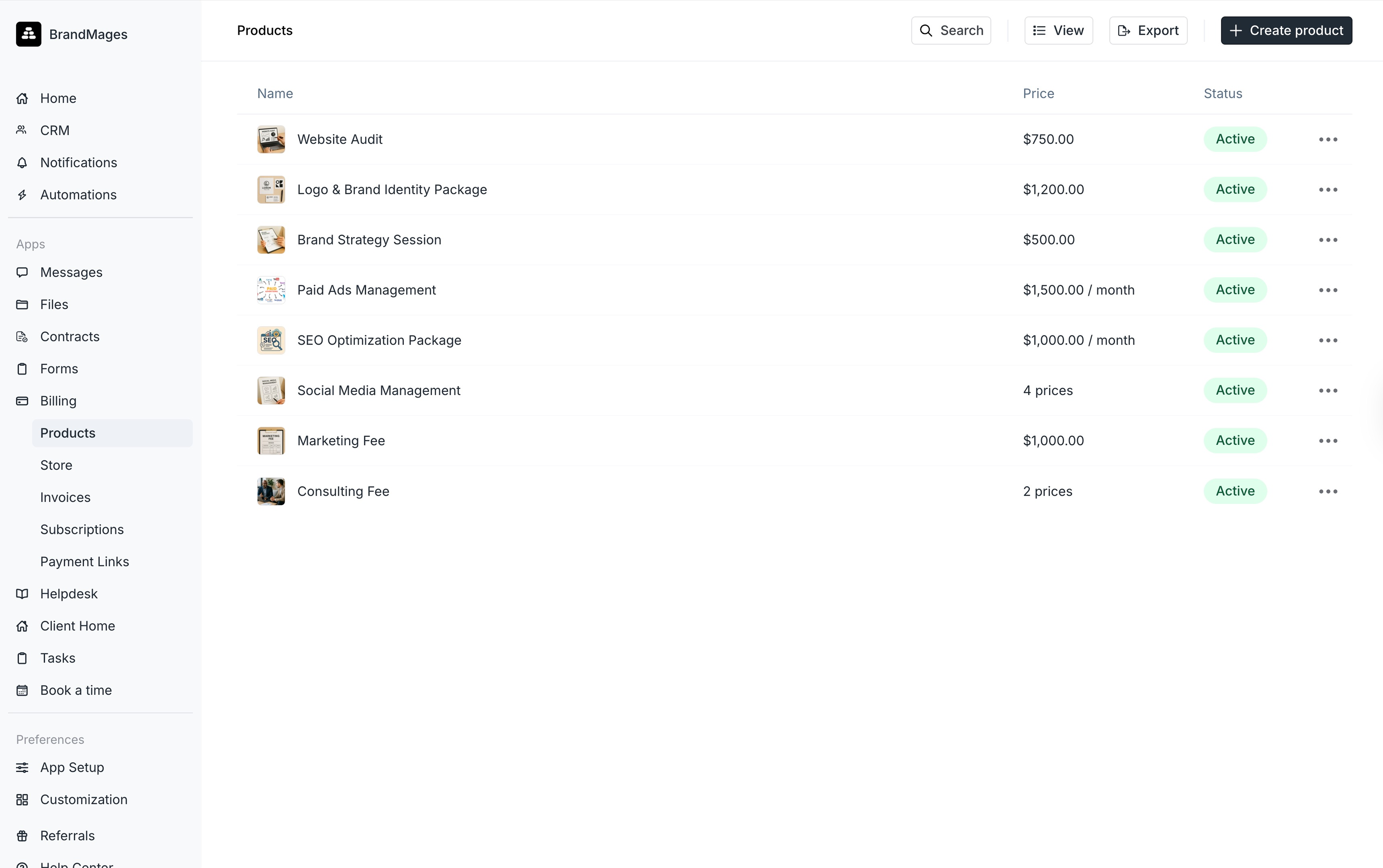
On the Billing >Services page, you can view all your services along with their prices and status, and you can also create new services. You can add multiple predefined prices for a service, which can be added to an invoice. To create a new service, click + New service in the top-right corner of the Services page.
Navigate to Billing > Services on the navbar and click + Create Services.
Enter the name of the service.
Optionally add a description.
Optionally add an image.
Select whether you'd like the service to be a One-time charge or Recurring.
If you choose a recurring price, you can then select the Billing Period for this service from the dropdown. Options include Daily, Weekly, Monthly, Quarterly, Biannually, or Yearly. You can also associate additional prices with the service later on.
Add the price of the service and then click Create service.
After creating the service, you will be taken to that service’s page. Here, you can add additional prices for that service by clicking on + Add a price.
Navigate to Billing > Services and select the service you would like to update.
To change the name or photo of the service, click Edit.
To add another price for the service, click + Add a price.
To learn how to add a service to an invoice or subscription, check out our Invoicing Article here and our Subscriptions Article here.